


Tag MarketsTAG MARKETSREGISTRATION GUIDE / EN
Back to the Tag Markets information page
日本語中文한국어EN

TAG MARKETS / COPYX / STARTER GUIDE

Review the flow
before you register.

This independent guide organizes a public-screen-and-official-link workflow from CopyX sign-up through Tag Markets portal checks, identity verification, funding and MT5 viewing. Screens, terms and regional availability can change, so verify each official page before acting.

Start CopyX registrationAsk zero on LINE
  1. 01

    Create a CopyX account

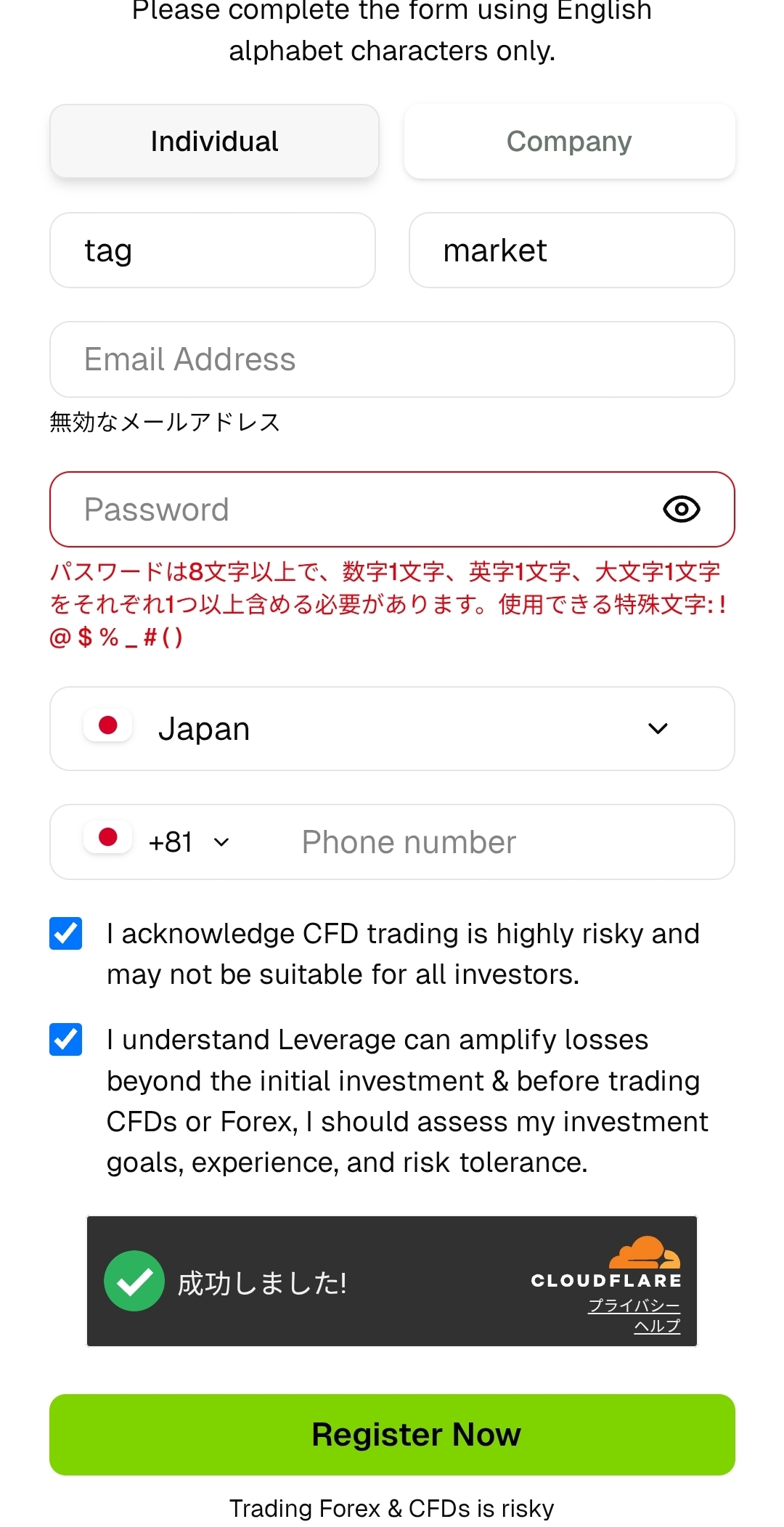
    Open the sign-up page, confirm the display language, and enter your name, email address and password accurately. Review the submitted details and terms before continuing.

    Do not share your email address, password or verification code with anyone else.
    Screen 1: Create a CopyX account
    Screen 01
    Screen 2: Create a CopyX account
    Screen 02
  2. 02

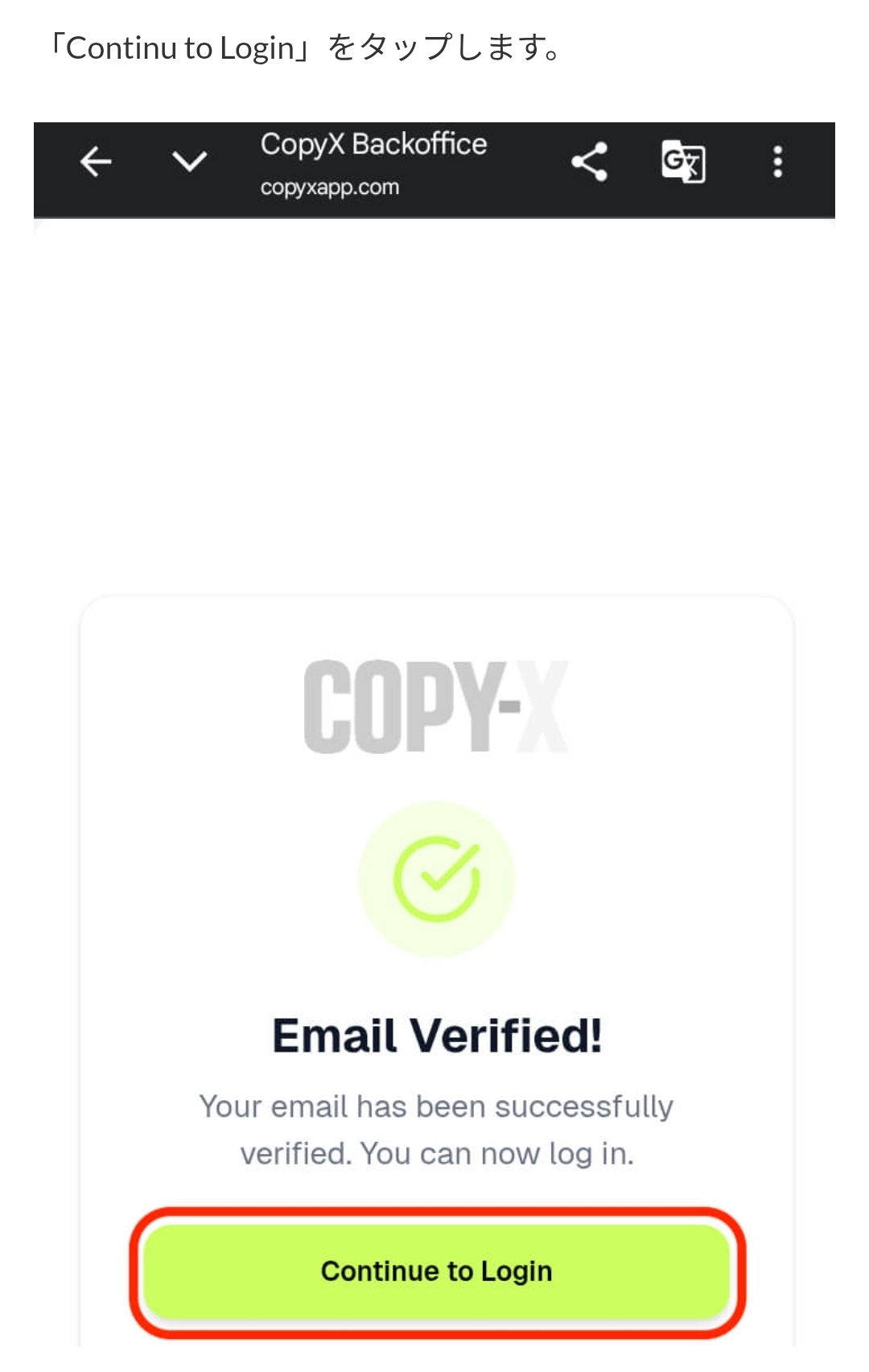
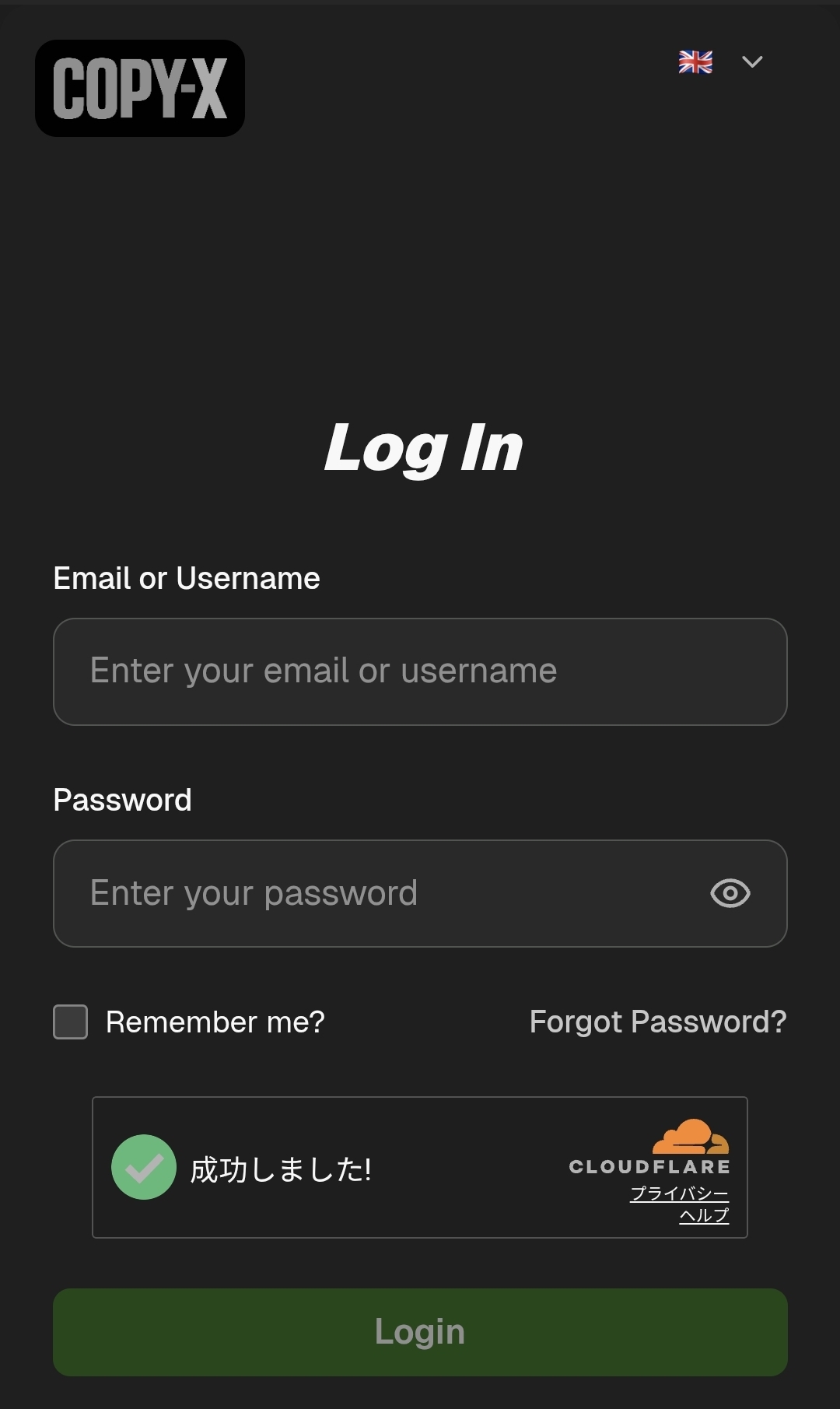
    Verify your email and sign in

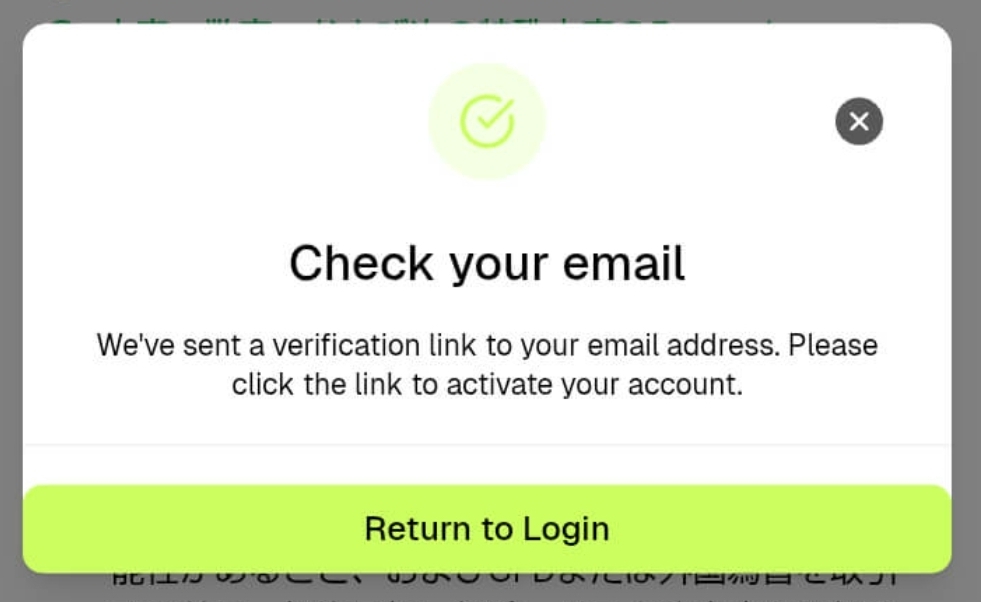
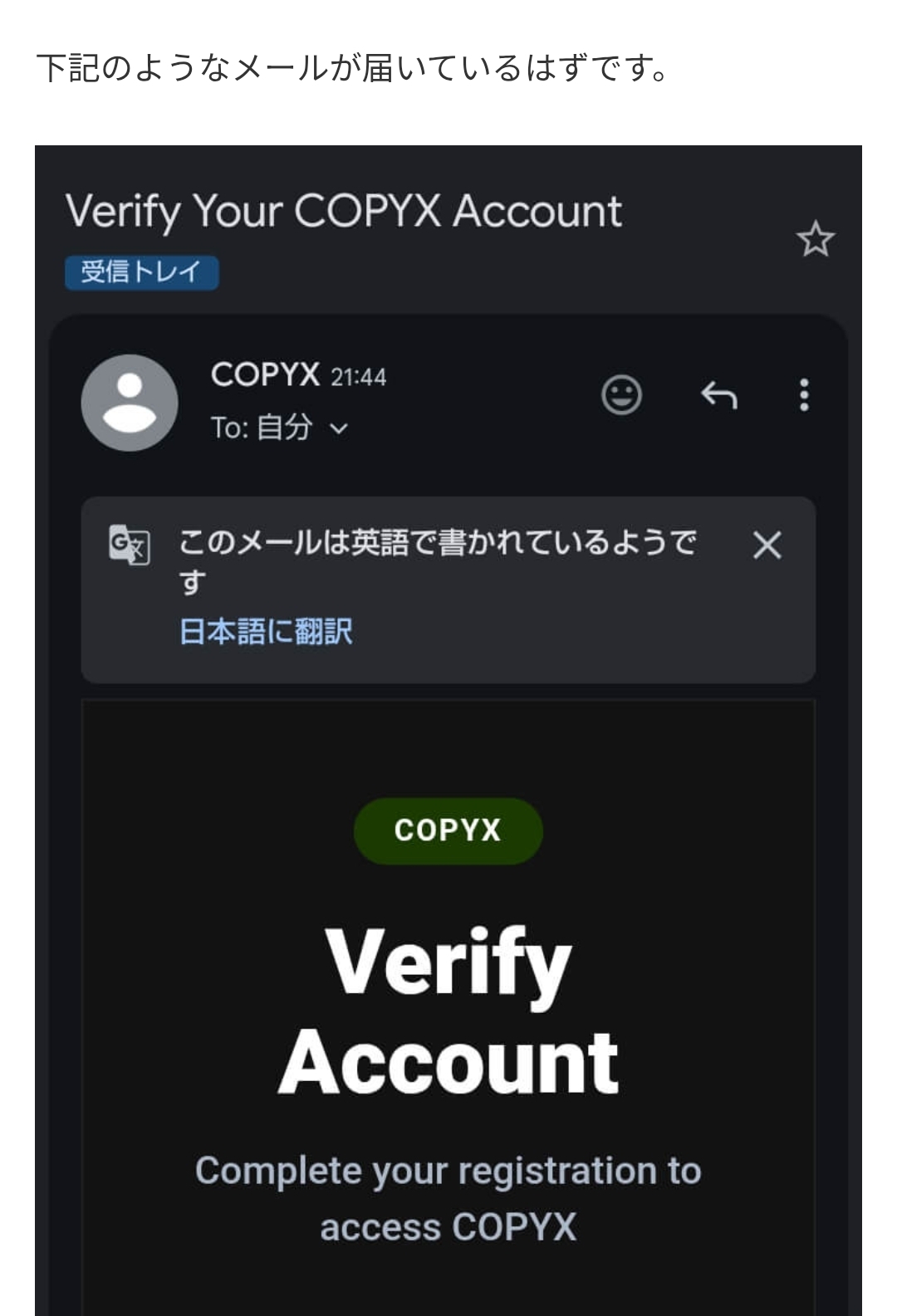
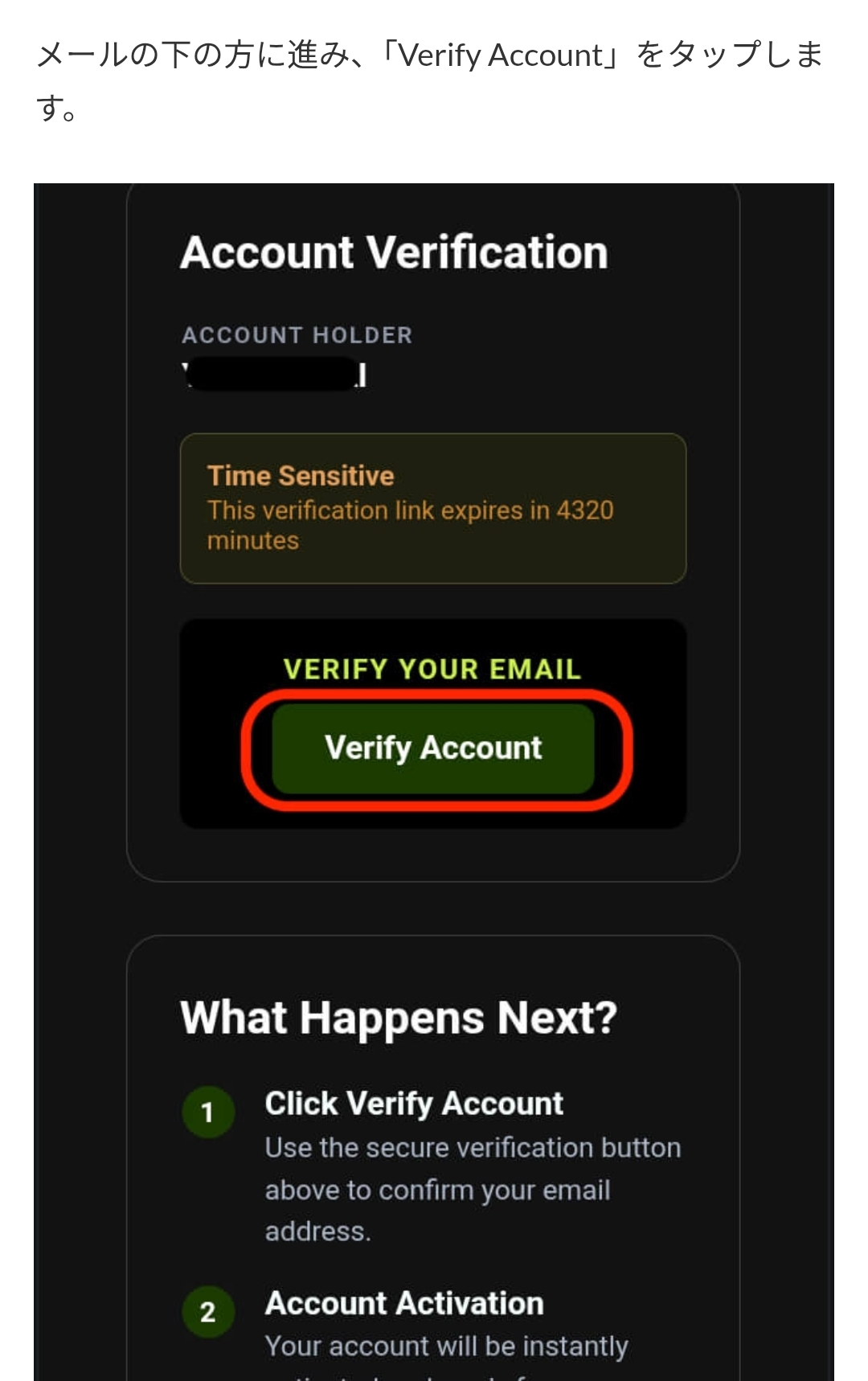
    Check the verification prompt sent to the registration email address and follow the external service's flow before signing in.

    Check the URL of every verification link and do not open suspicious links.
    Screen 3: Verify your email and sign in
    Screen 03
    Screen 4: Verify your email and sign in
    Screen 04
    Screen 5: Verify your email and sign in
    Screen 05
    Screen 6: Verify your email and sign in
    Screen 06
    Screen 7: Verify your email and sign in
    Screen 07
  3. 03

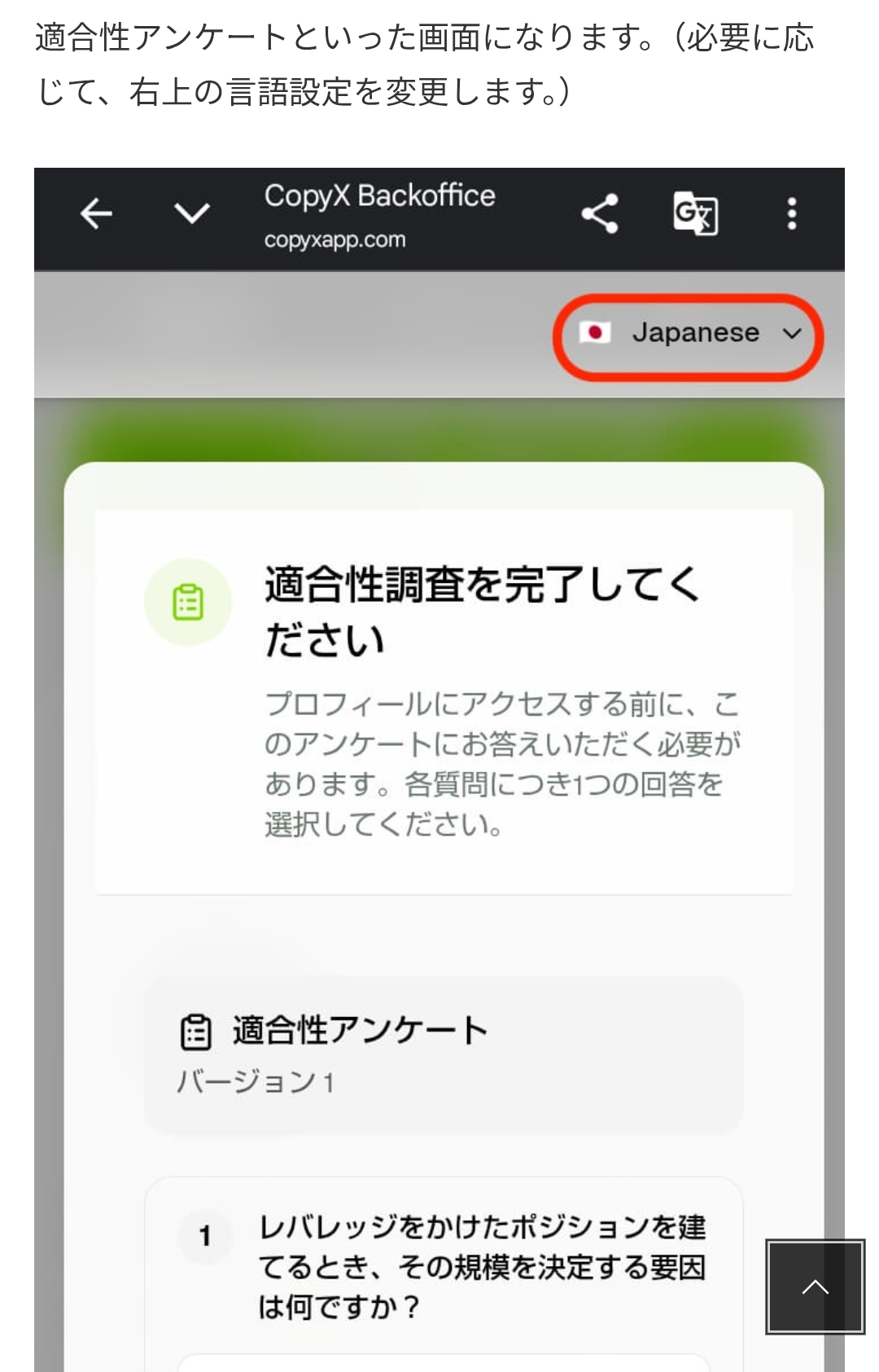
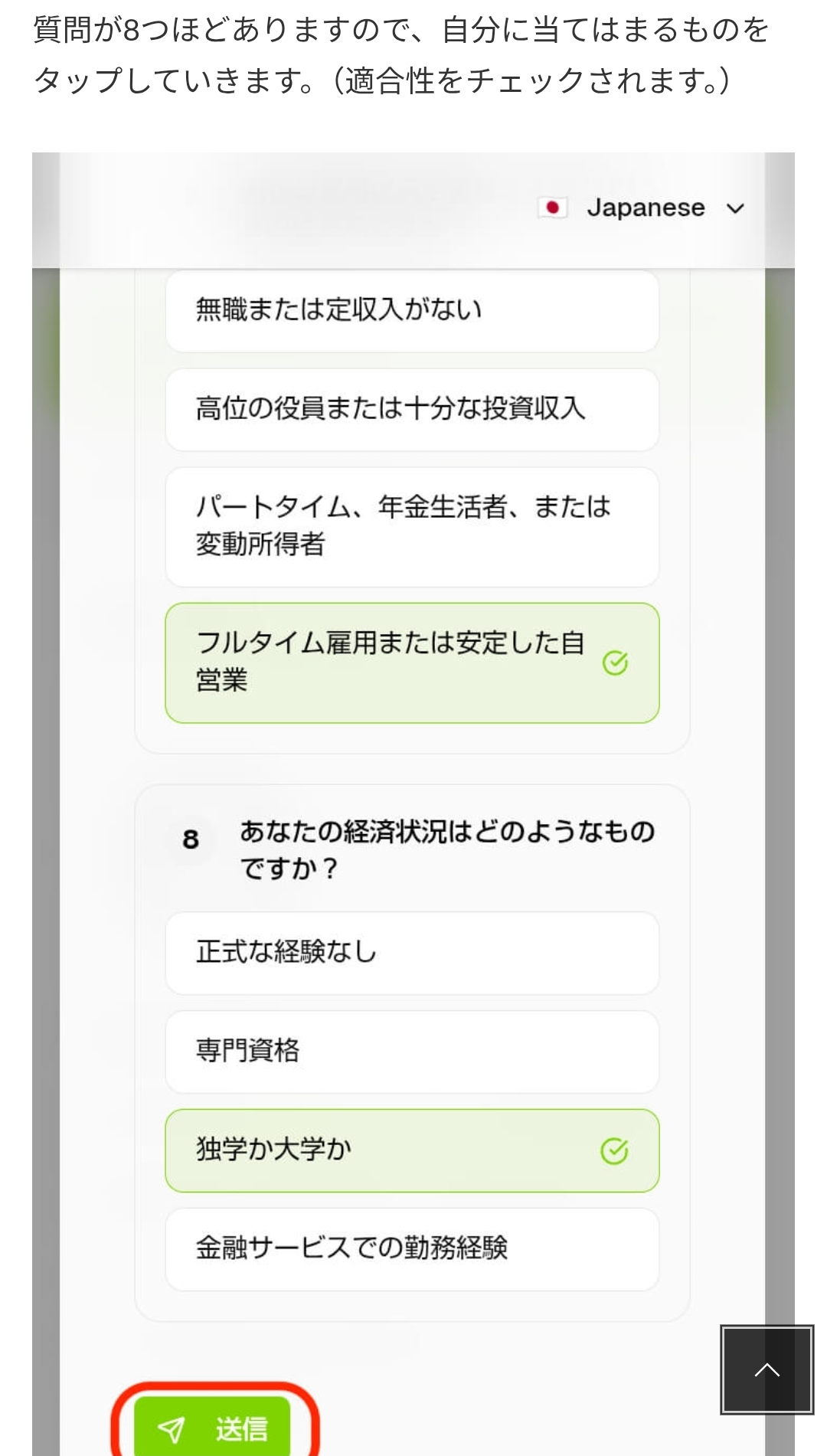
    Answer questions and verify the portal

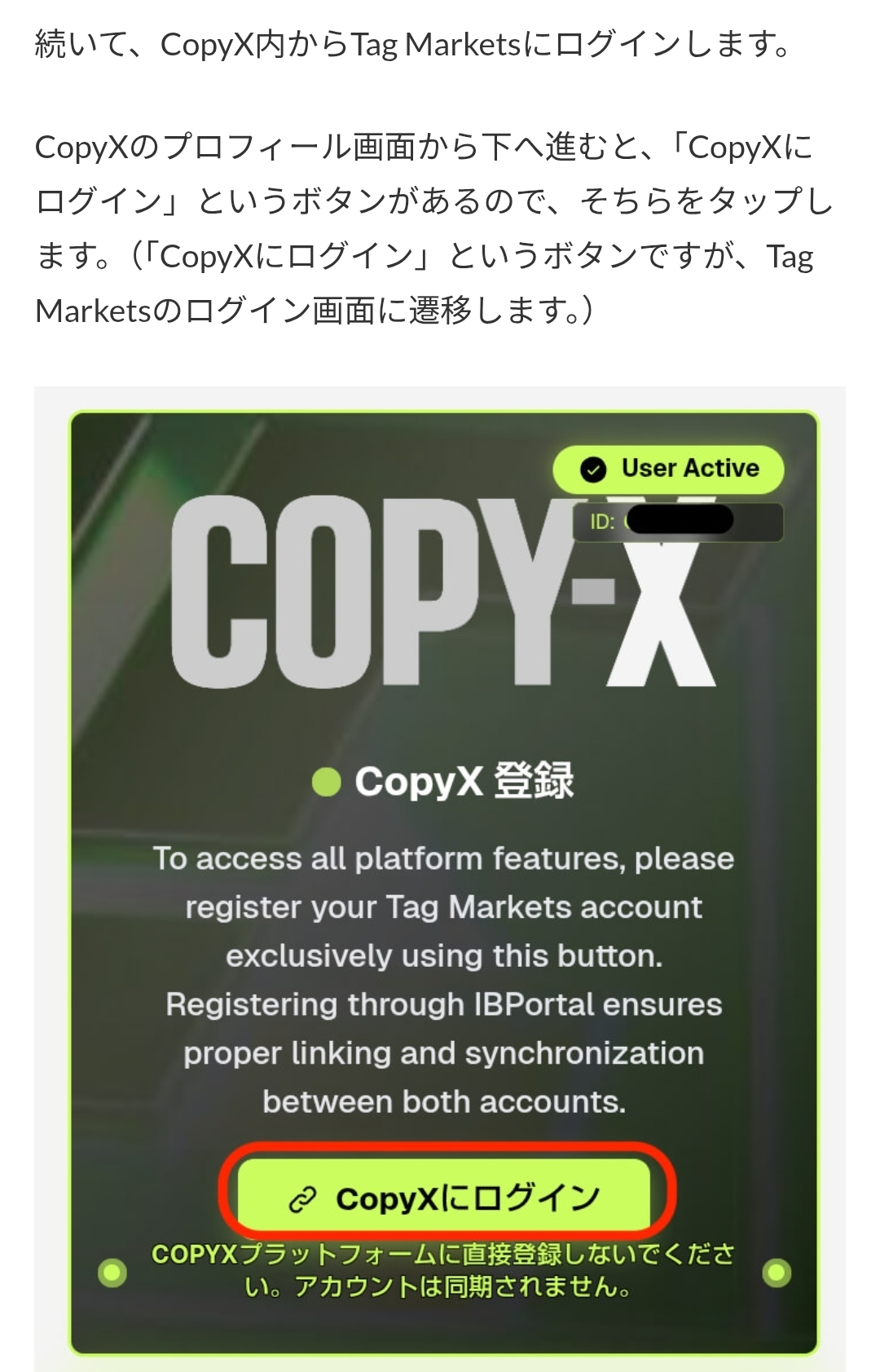
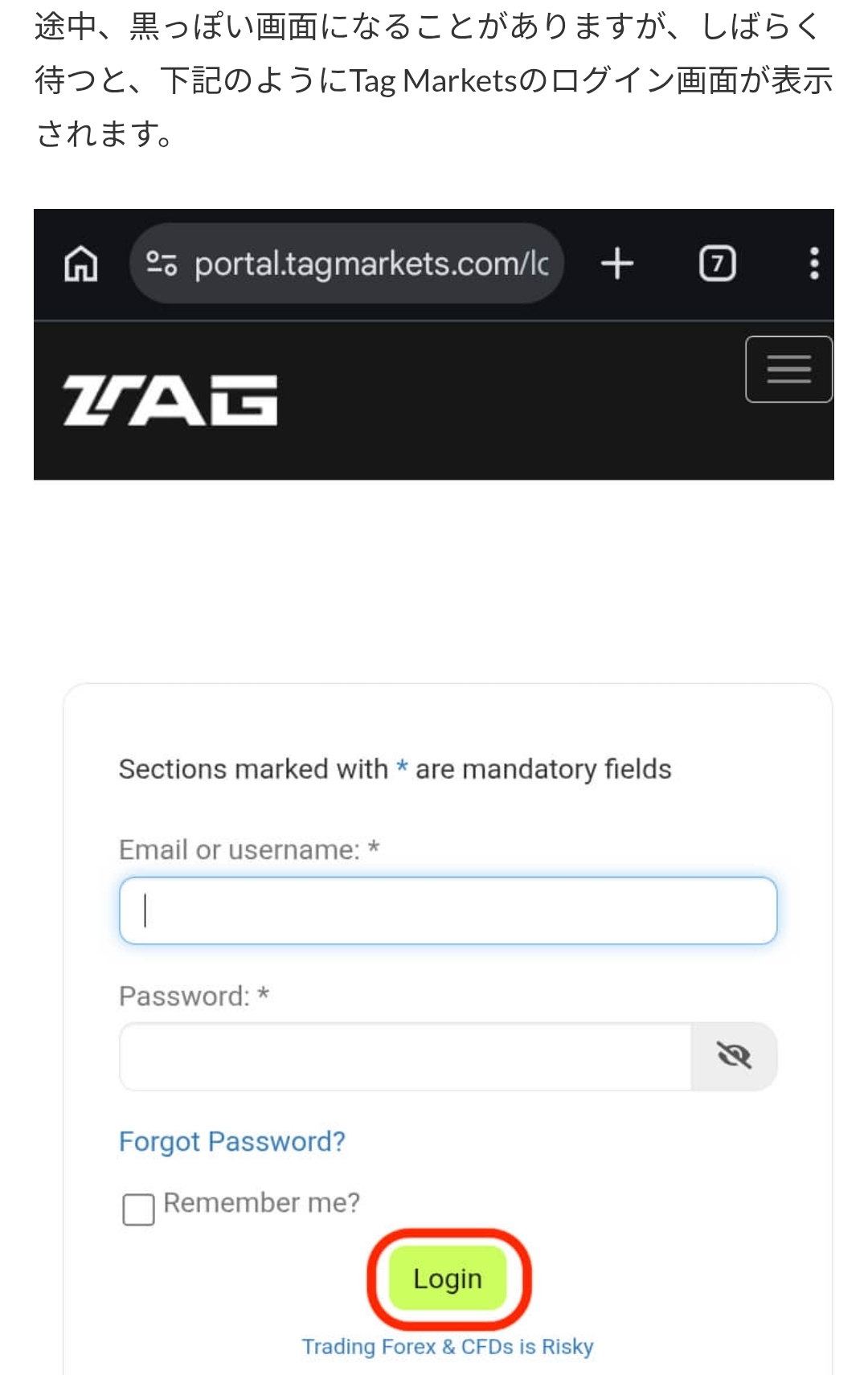
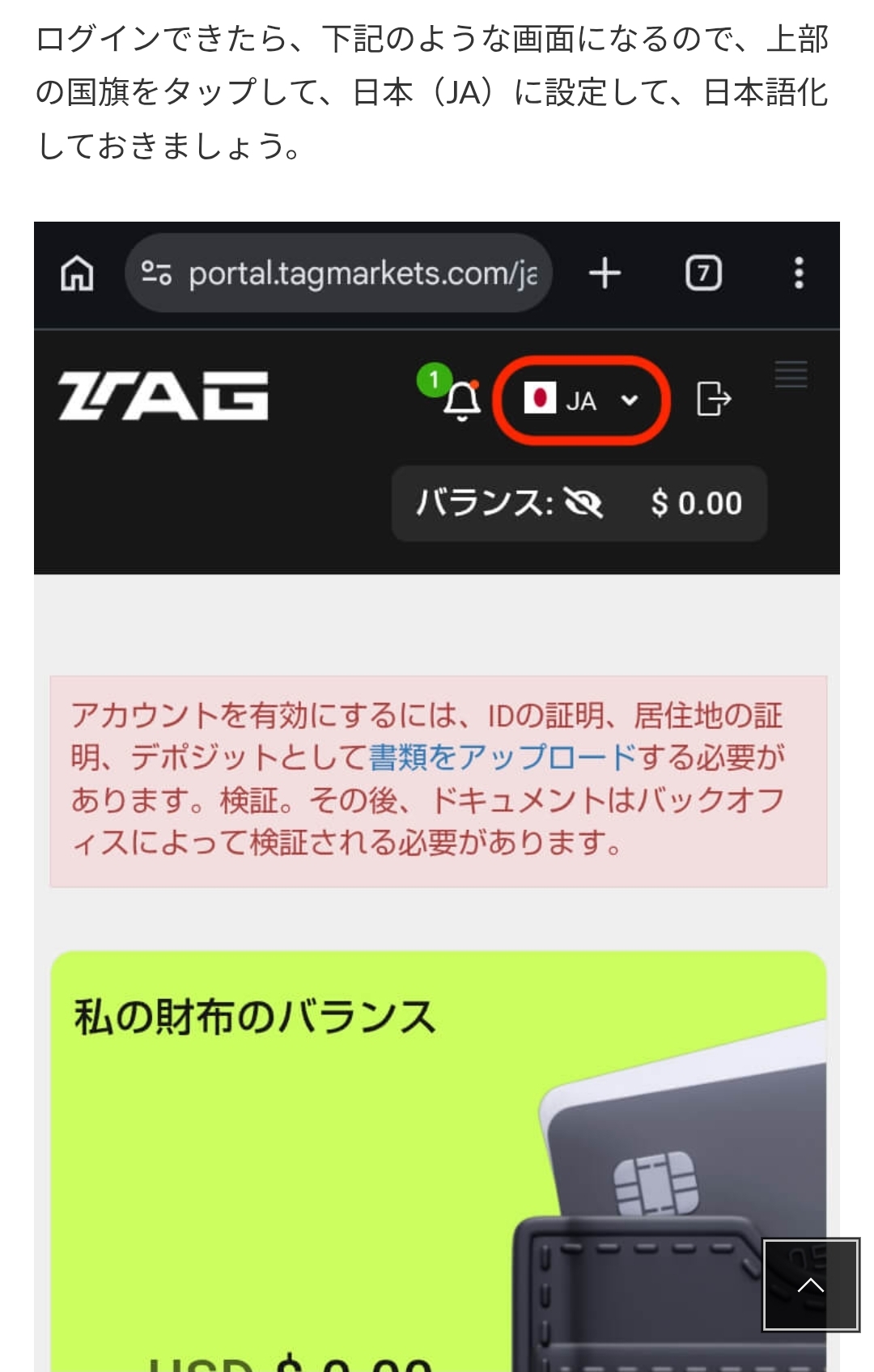
    Answer any suitability or profile questions based on your own circumstances. Then verify the URL and display language of the Tag Markets portal reached from the flow.

    External-service terms and decisions govern the questionnaire and account availability.
    Screen 8: Answer questions and verify the portal
    Screen 08
    Screen 9: Answer questions and verify the portal
    Screen 09
    Screen 10: Answer questions and verify the portal
    Screen 10
    Screen 11: Answer questions and verify the portal
    Screen 11
    Screen 12: Answer questions and verify the portal
    Screen 12
    Screen 13: Answer questions and verify the portal
    Screen 13
    Screen 14: Answer questions and verify the portal
    Screen 14
  4. 04

    Submit identity documents

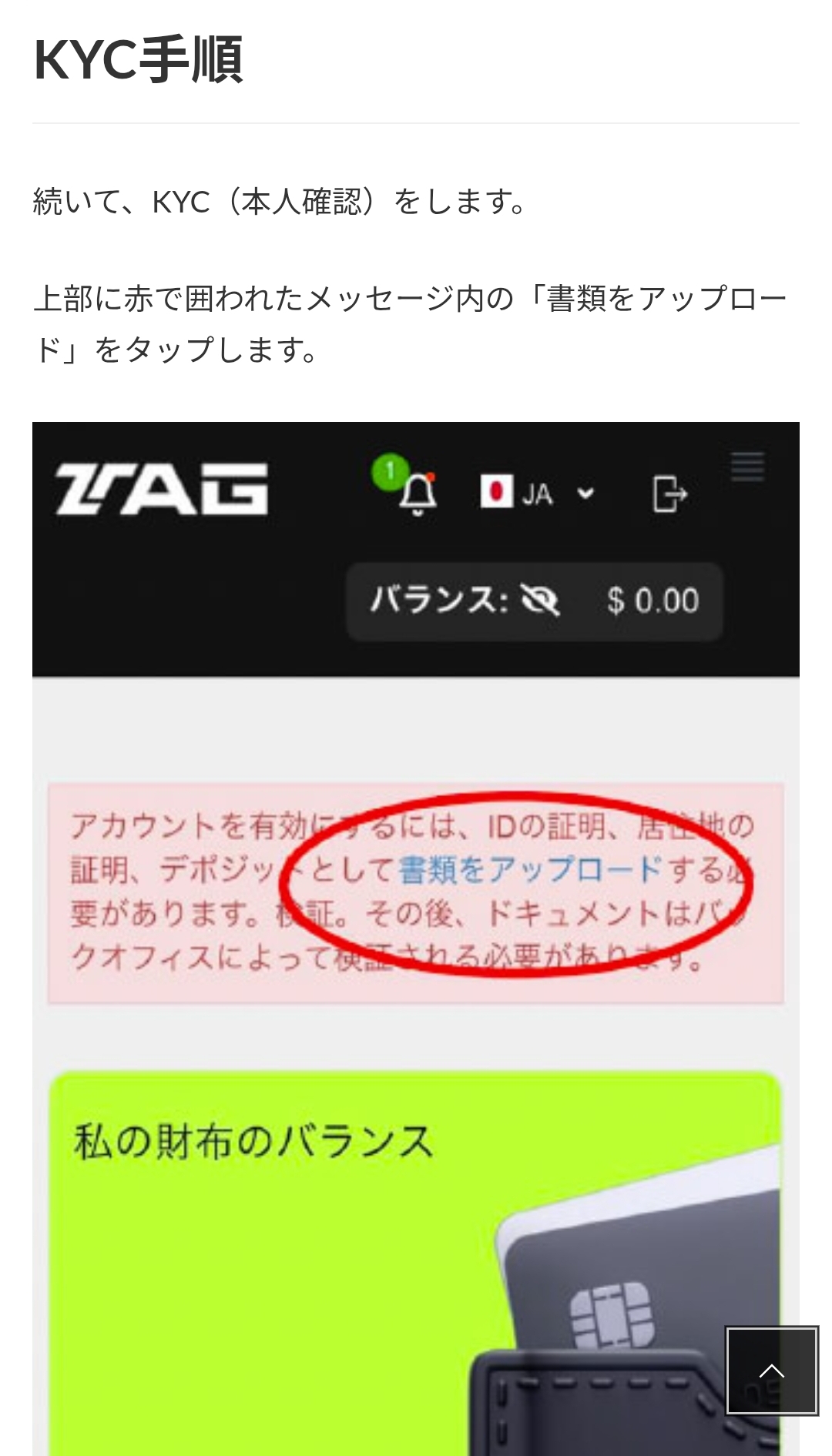
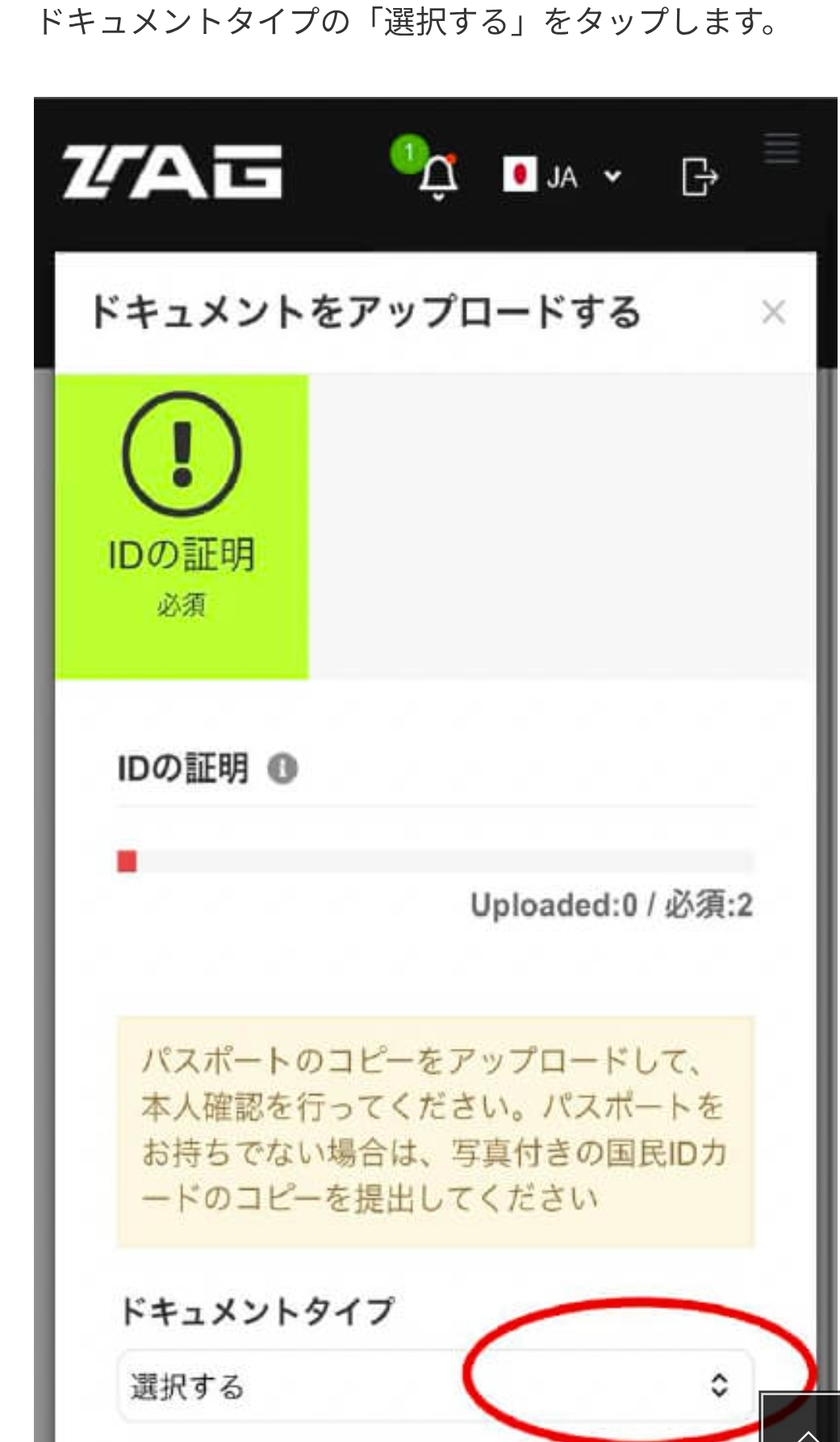
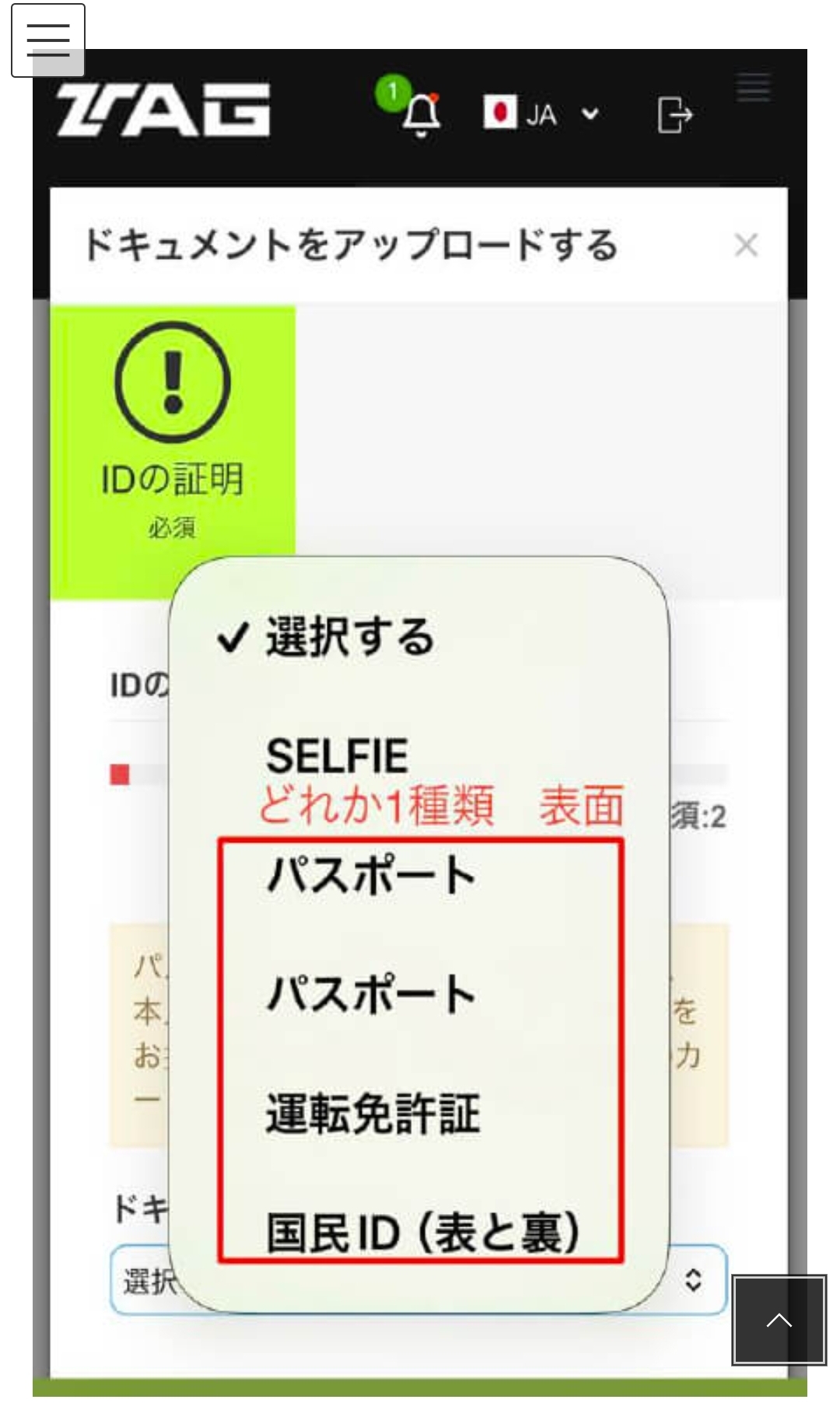
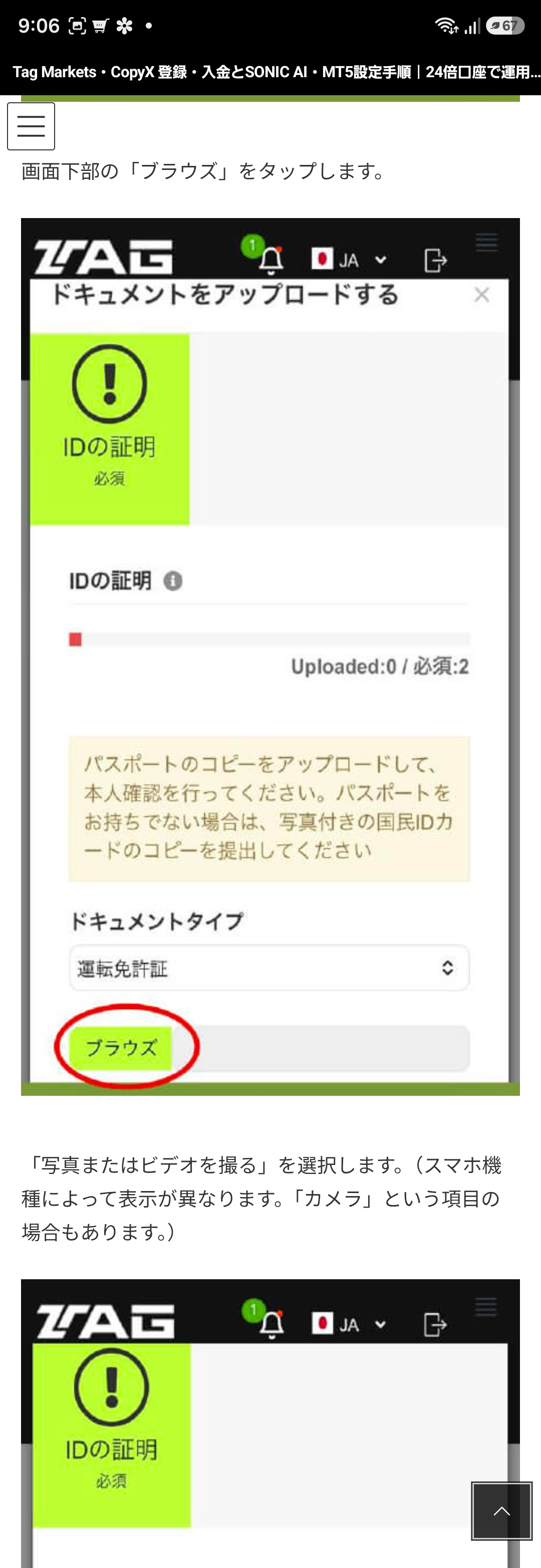
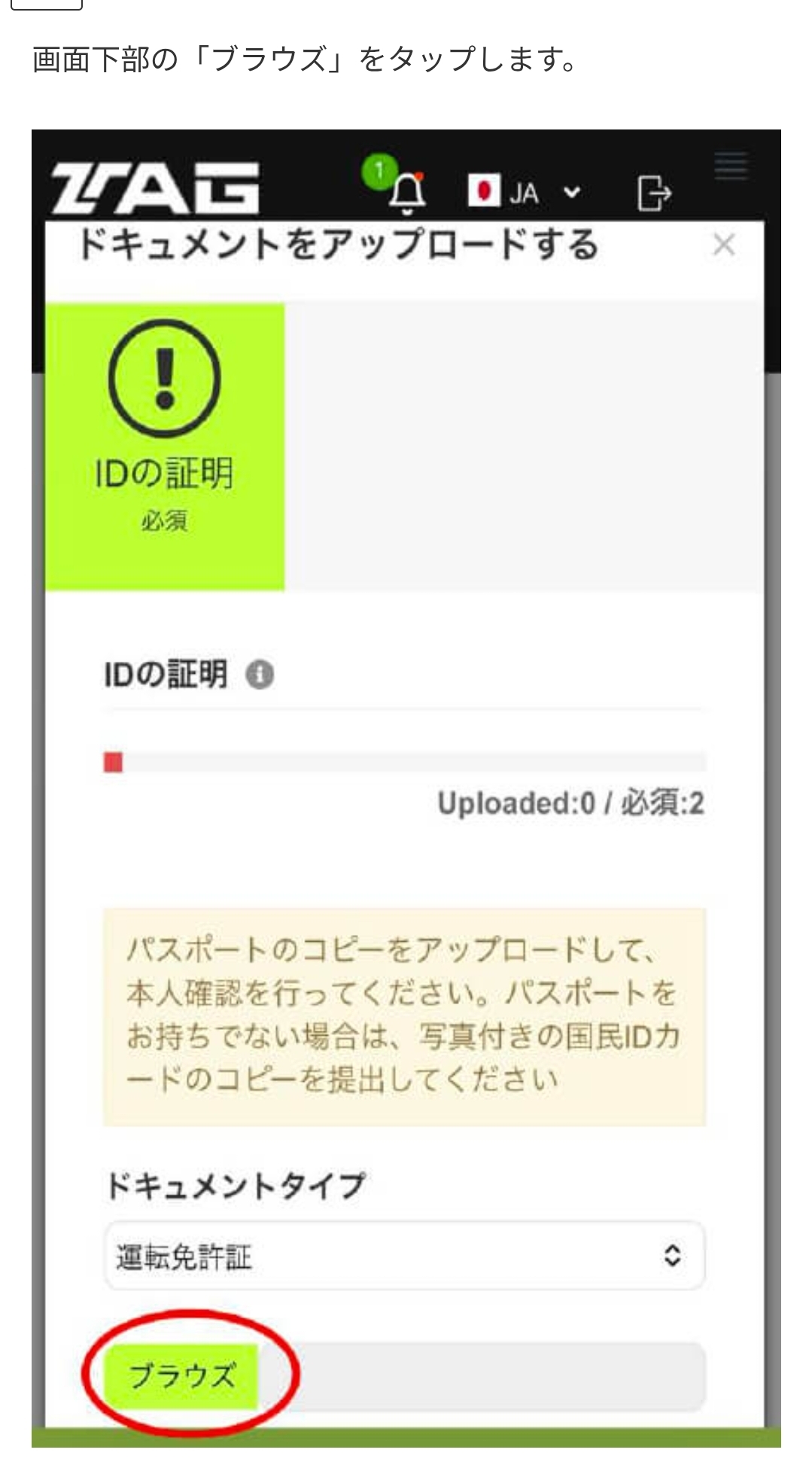
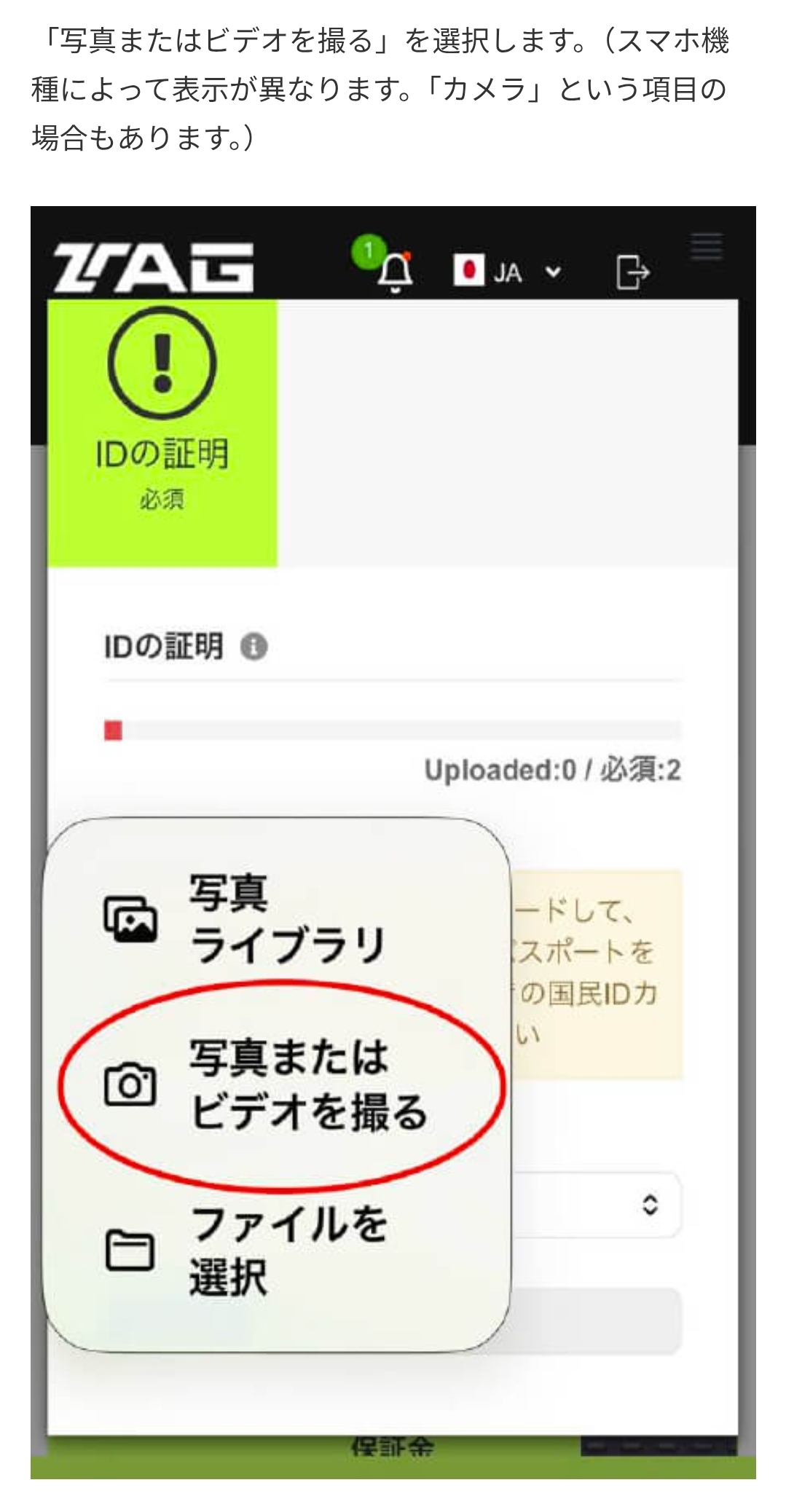
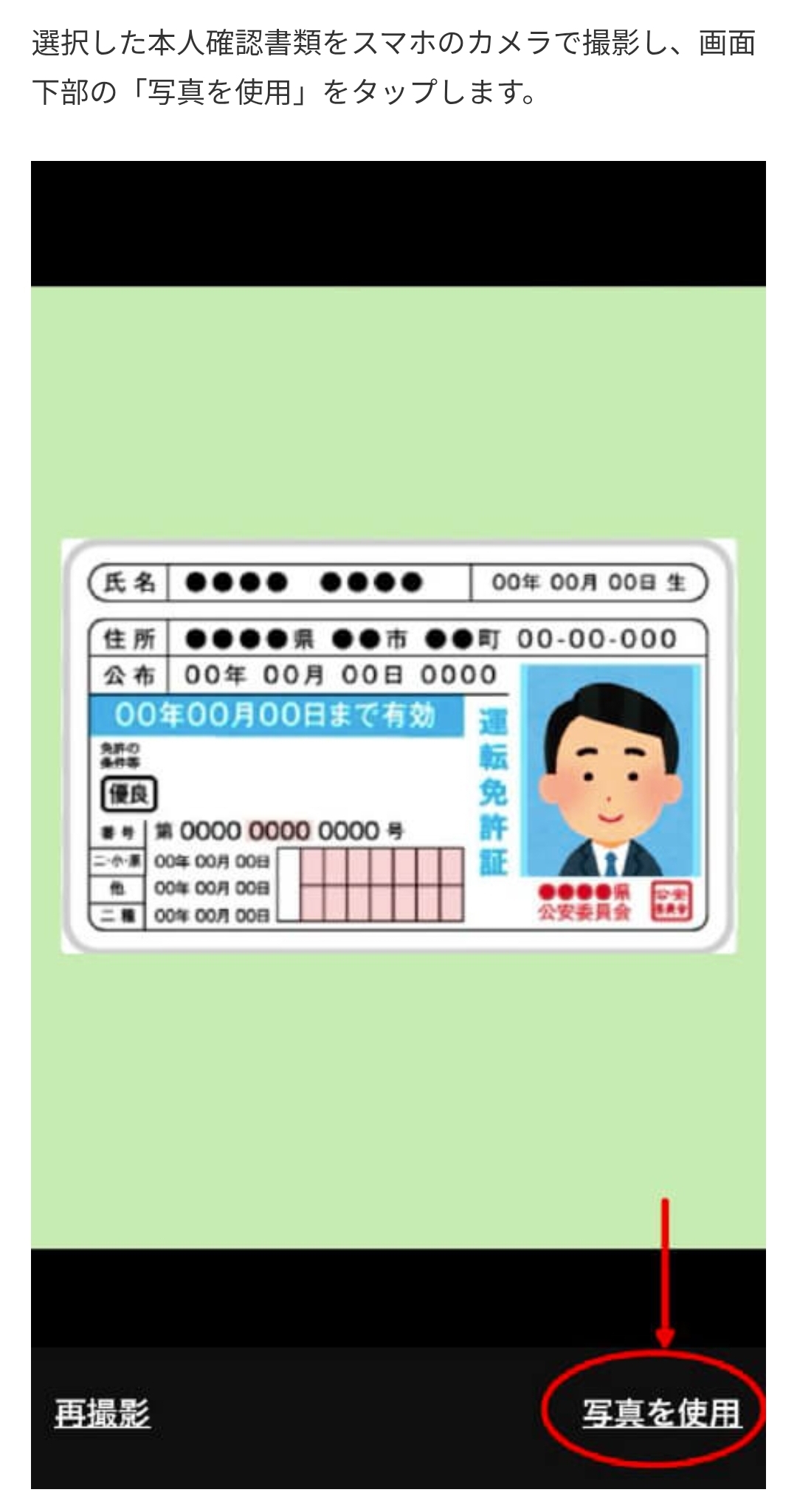
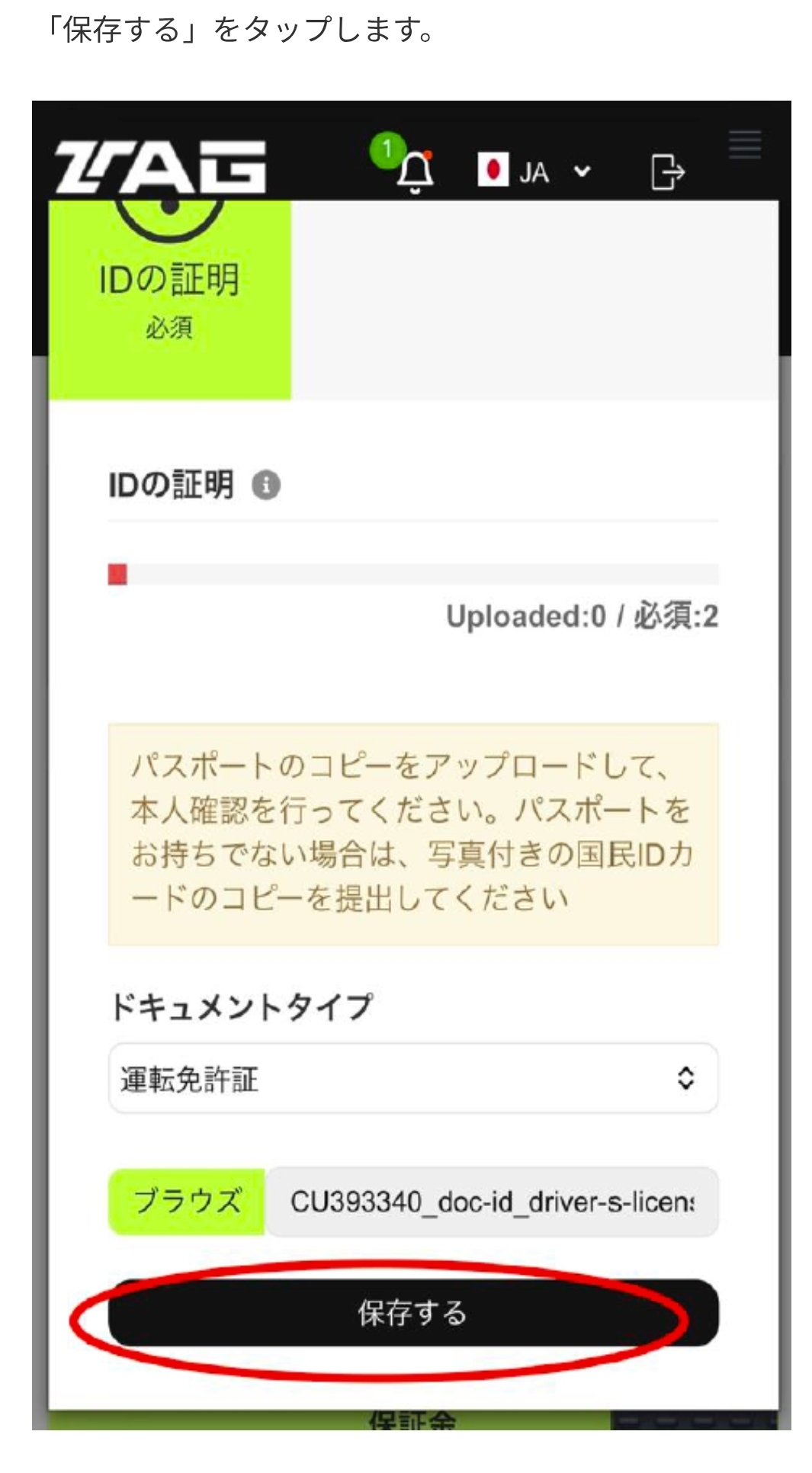
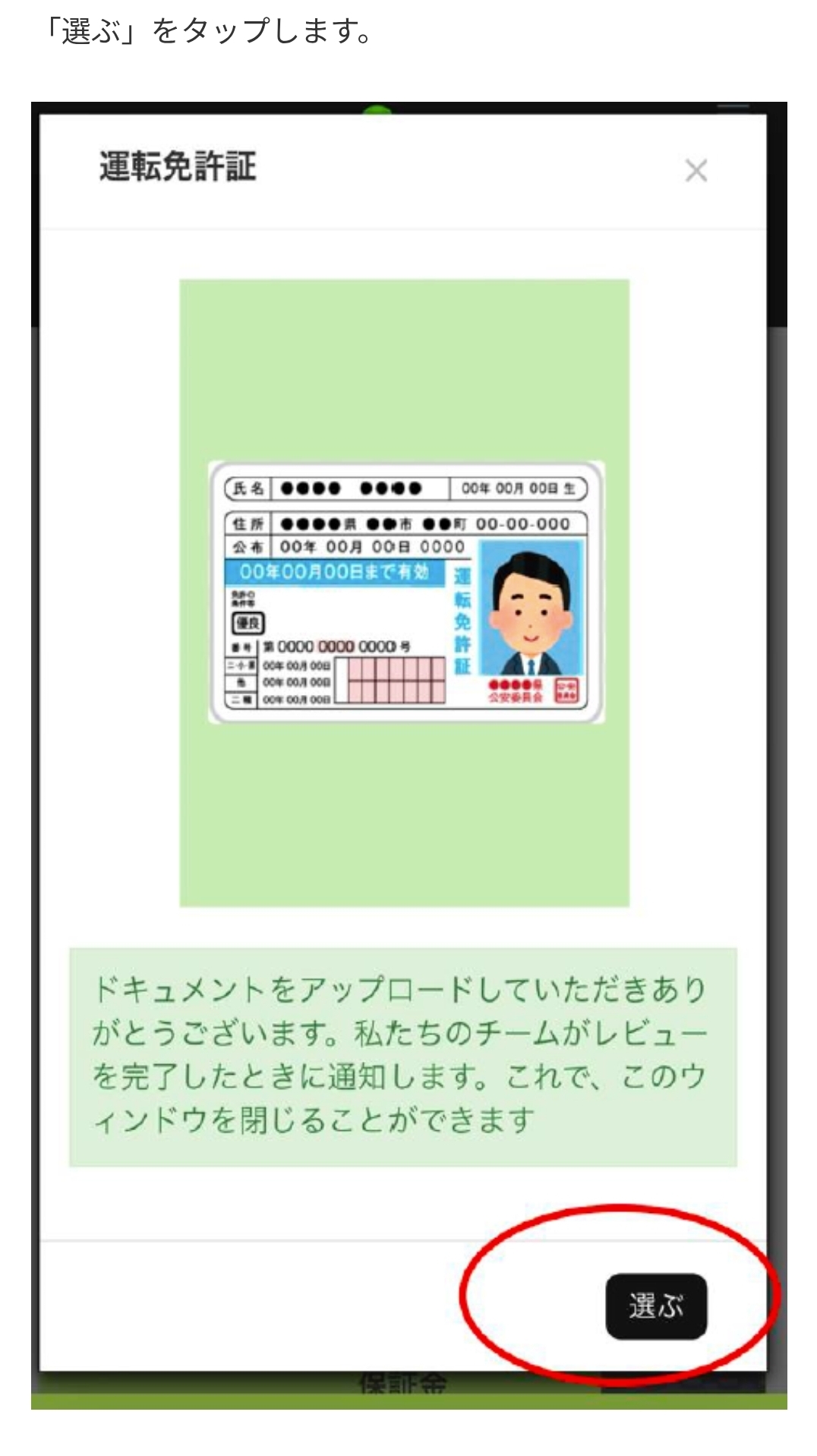
    Choose the document type in the official interface and upload the required images, such as the front and back, yourself. Confirm image clarity and accuracy before saving.

    Never send ID documents, facial images or address details through LINE, social media or email.
    Screen 15: Submit identity documents
    Screen 15
    Screen 16: Submit identity documents
    Screen 16
    Screen 17: Submit identity documents
    Screen 17
    Screen 18: Submit identity documents
    Screen 18
    Screen 19: Submit identity documents
    Screen 19
    Screen 20: Submit identity documents
    Screen 20
    Screen 21: Submit identity documents
    Screen 21
    Screen 22: Submit identity documents
    Screen 22
  5. 05

    Submit a selfie and review status

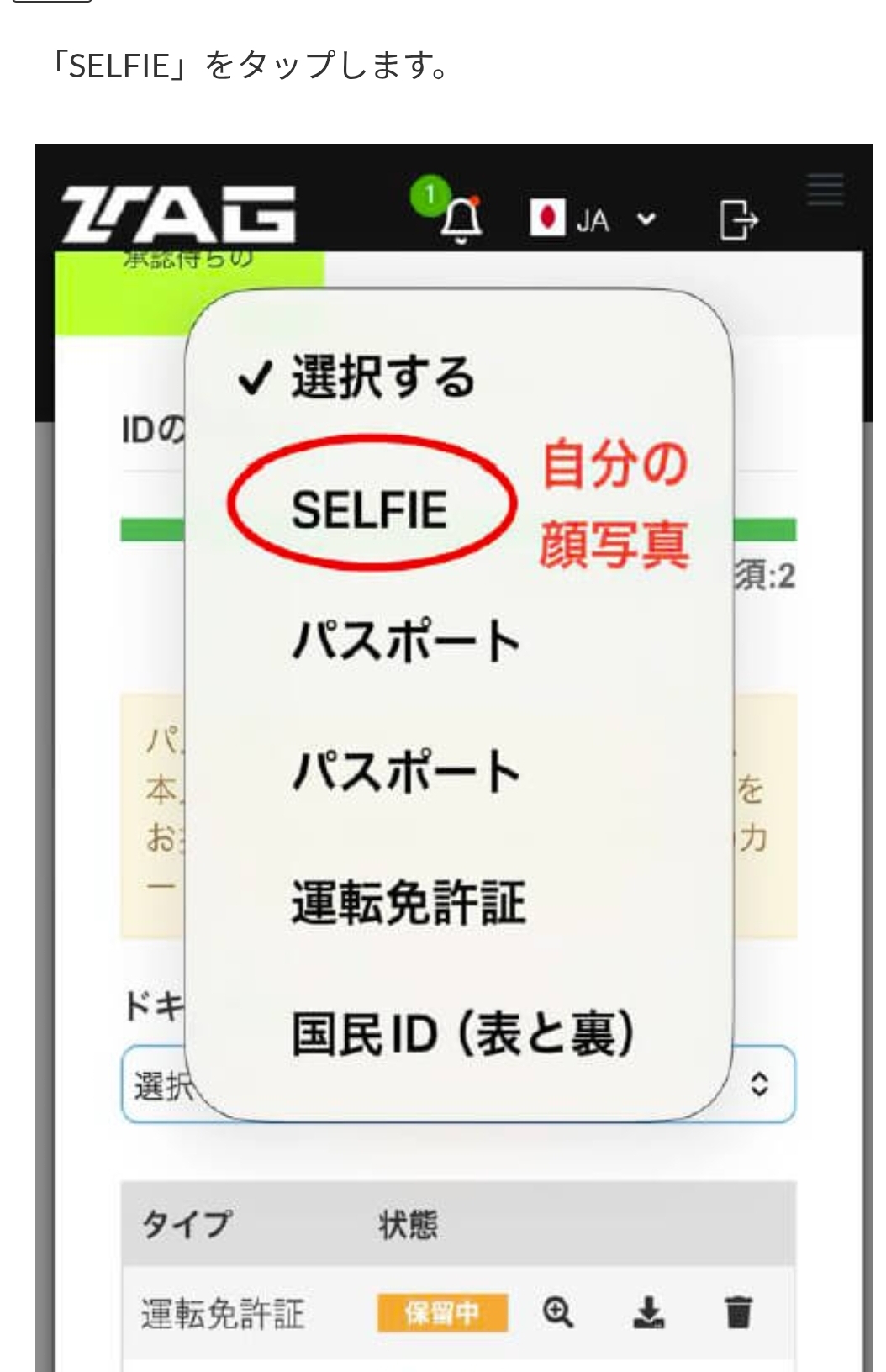
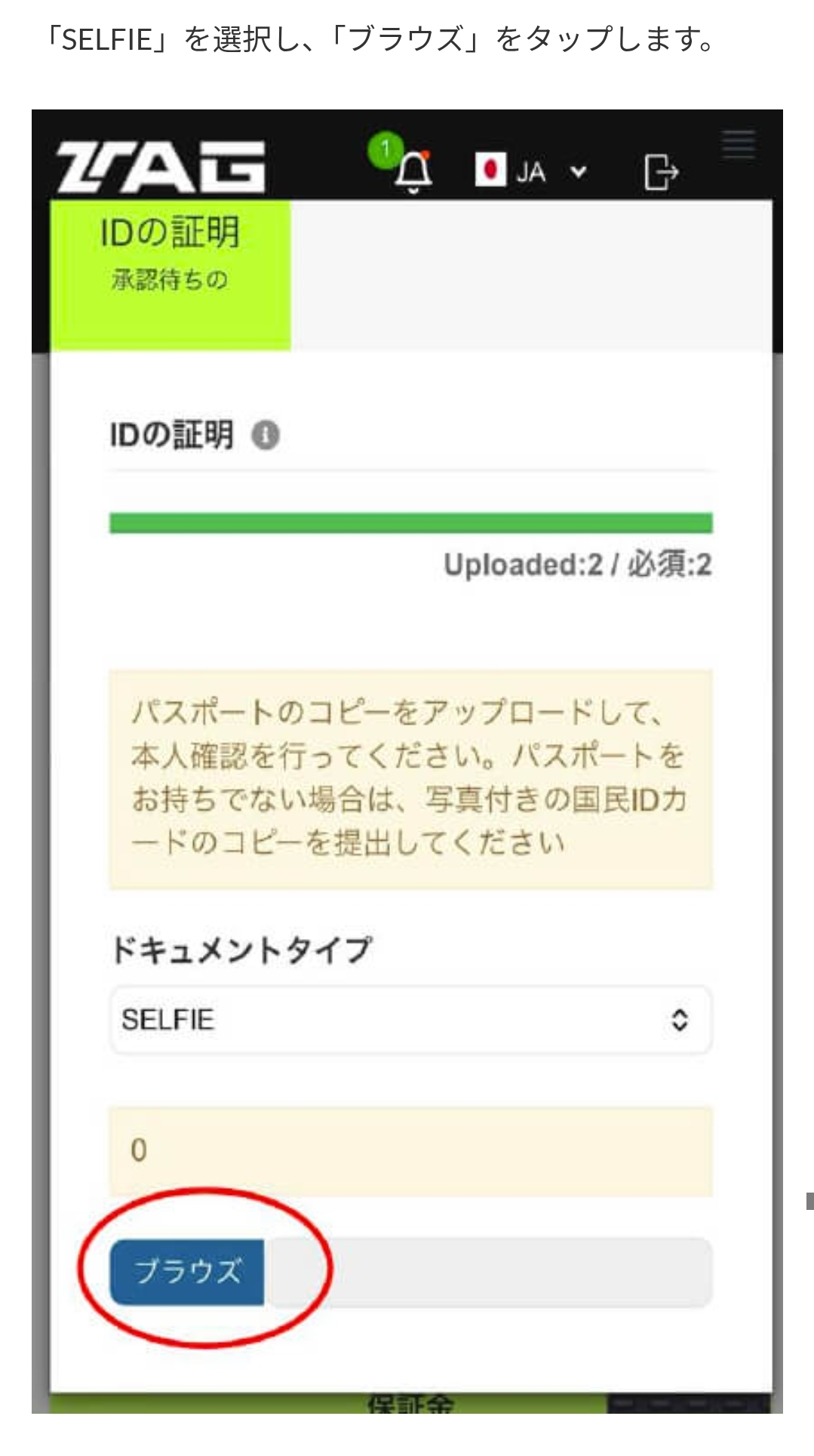
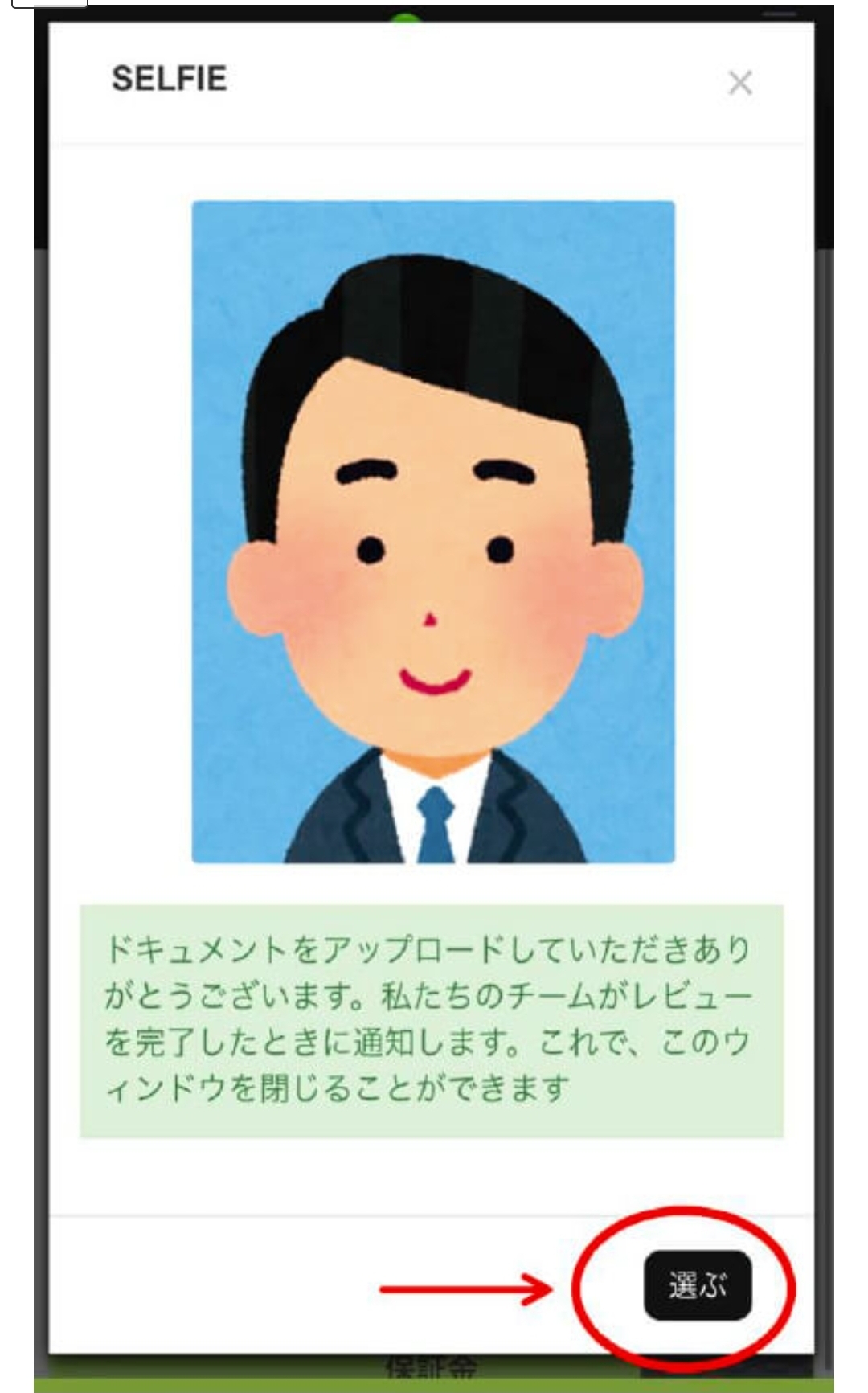
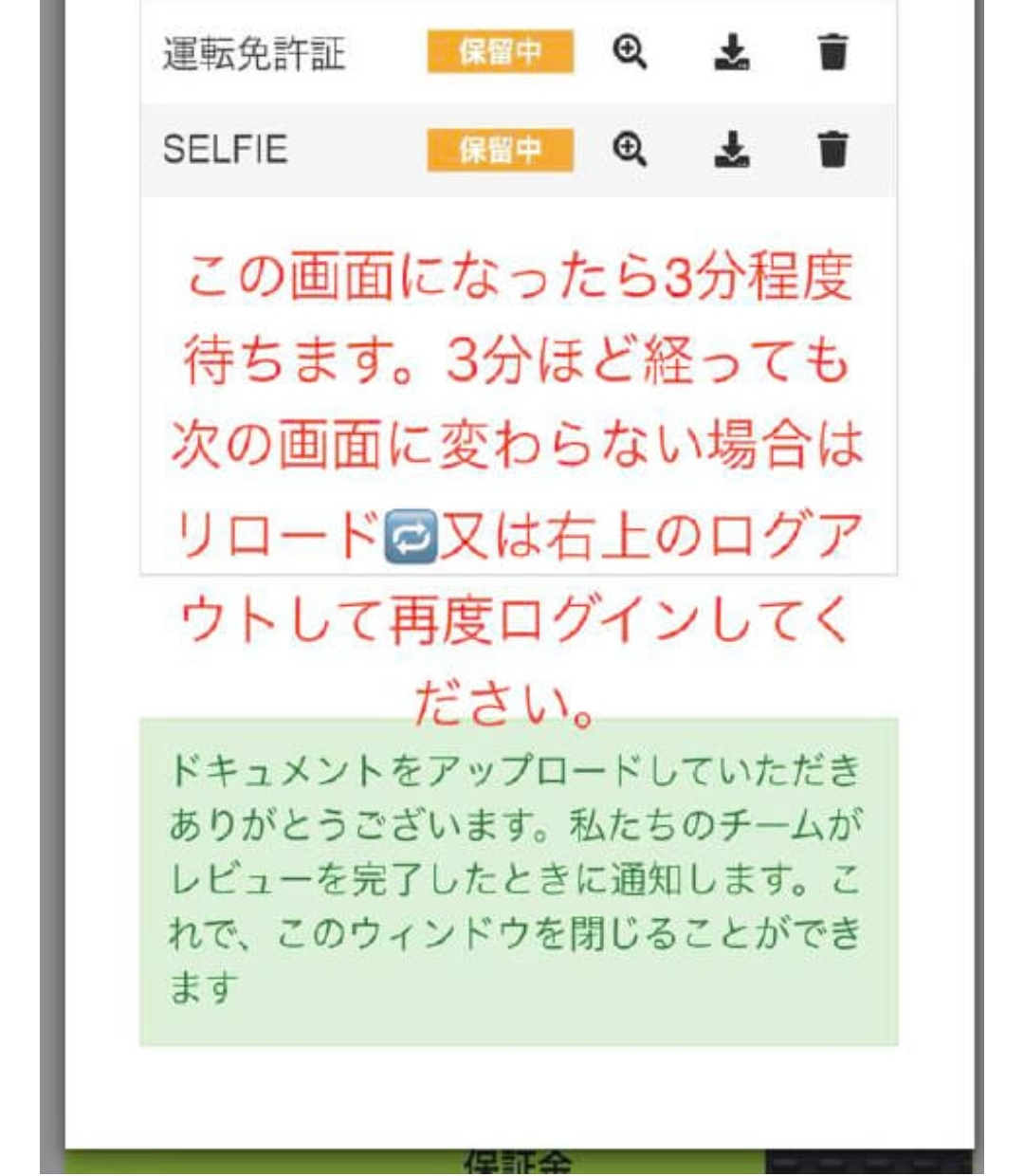
    If required, select SELFIE in the official interface and submit it following the instructions. Afterwards, check the review status and any follow-up information on the official screen.

    For waiting times or reload guidance, follow the current official screen or official support instructions.
    Screen 23: Submit a selfie and review status
    Screen 23
    Screen 24: Submit a selfie and review status
    Screen 24
    Screen 25: Submit a selfie and review status
    Screen 25
    Screen 26: Submit a selfie and review status
    Screen 26
    Screen 27: Submit a selfie and review status
    Screen 27
    Screen 28: Submit a selfie and review status
    Screen 28

BEFORE YOU START

Confirm your preparation, then proceed.

  • Check eligibility in your country and the official terms
  • Prepare an accessible email address and required identification
  • Recheck the destination, network and fees on the official screen

REGISTRATION FLOW

Seven steps, from sign-up to review.

Keep registration information, identity documents, transfer destinations and login credentials private. Never share them on a website, social channel or chat.

  1. 01

    Register with CopyX

    Open the CopyX sign-up page from the registration button and enter your name, email address and password accurately.

    Review the terms, privacy notice and local eligibility before submitting details.
  2. 02

    Verify email and suitability details

    Follow the email prompts to verify the account and answer any required questions truthfully.

    If the verification email is missing, check spam and delivery settings.
  3. 03

    Check the Tag Markets portal

    In the portal reached from CopyX, check the login URL and display language. Only proceed on a verified official URL.

    Do not enter credentials on lookalike domains or suspicious login pages.
  4. 04

    Identity verification (KYC)

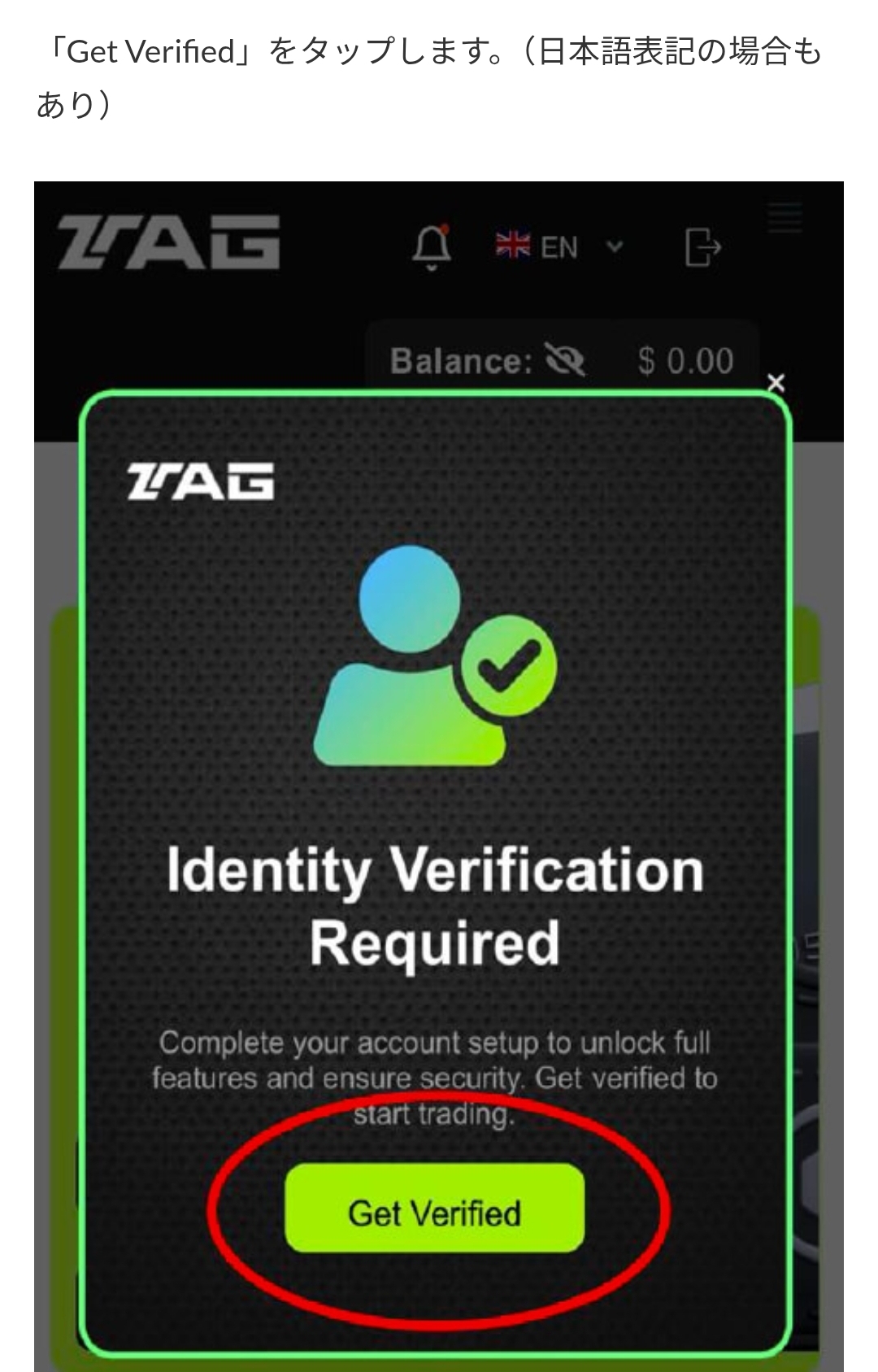
    If required, submit documents and a selfie only through the official interface following its instructions.

    Never send ID documents or facial images to third parties or chats.
  5. 05

    Final checks before funding

    Before funding, confirm the currency, network, minimum amount, fees, destination and processing time on the official screen.

    This guide never publishes funding addresses or individual funding instructions.
  6. 06

    Review strategy and CopyX conditions

    Review the strategy, fees, slippage, stop method, withdrawal terms and loss risks before selecting a copy option.

    Historical performance or multiplier displays do not guarantee future results.
  7. 07

    Review through the official MT5 app

    Download MT5 only from an official store or the MetaTrader website, and use only details displayed in your own account area.

    Never share login IDs, passwords or two-factor authentication codes.

FUNDING / SONIC / MT5 WALKTHROUGH

Review funding, SONIC connection and MT5 in the supplied order.

The screenshots below continue the guide in the exact order received. Funding, strategy selection, starting a copy and MT5 setup occur on external services. Confirm the URL, currency, network, fees and liquidation, stop and withdrawal terms on the official screen every time.

  1. 01

    Review the funding screen and transfer terms

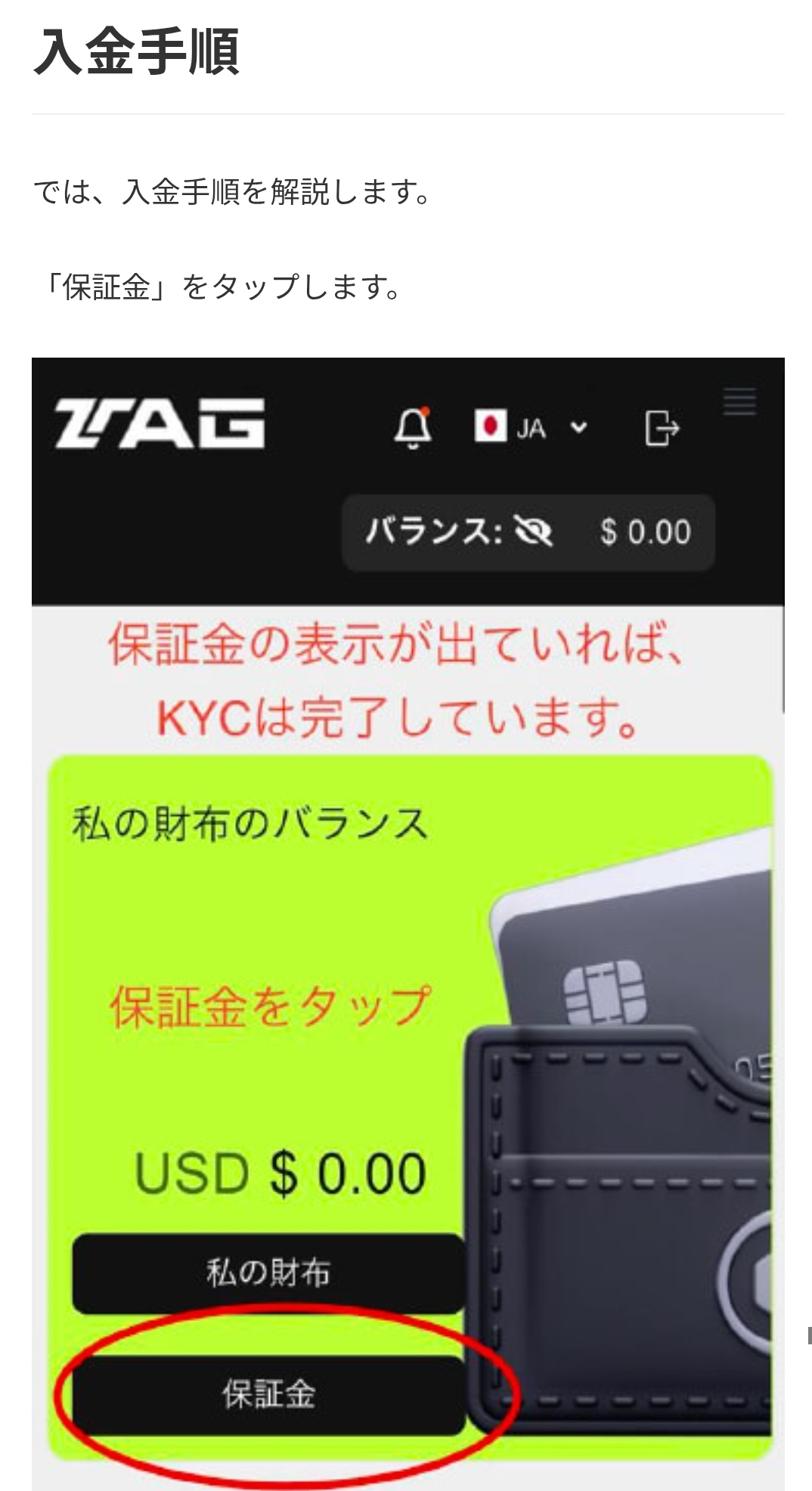
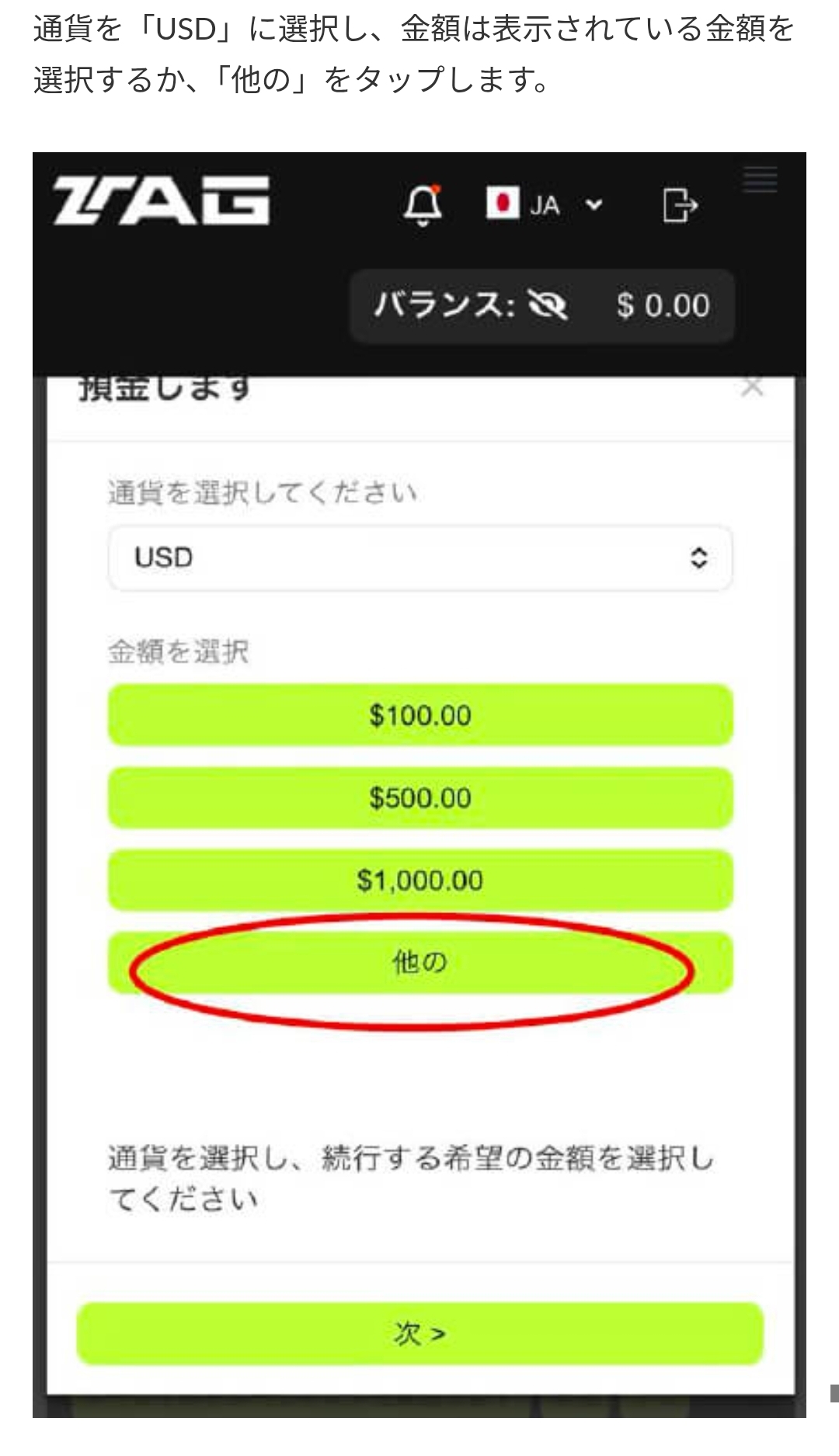
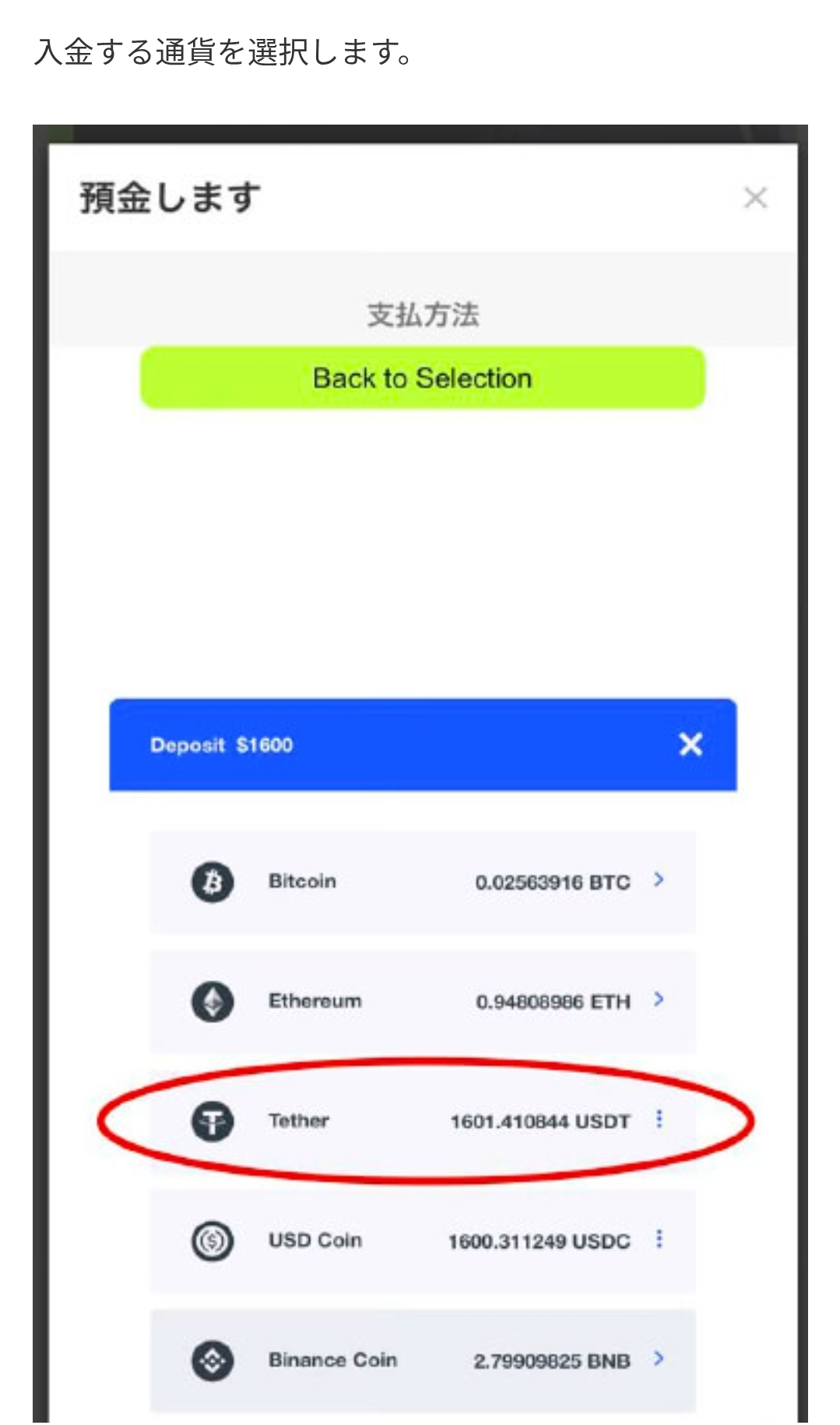
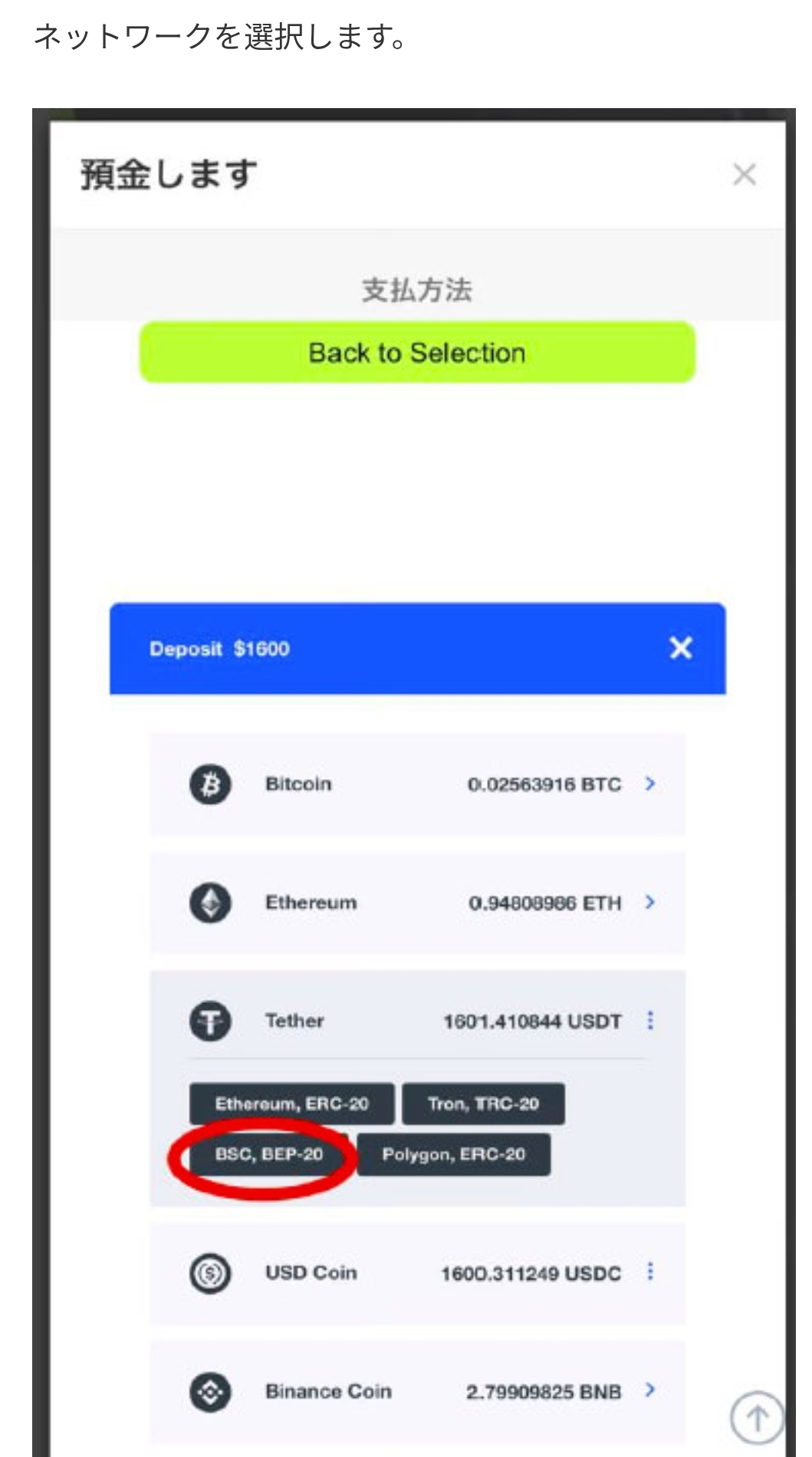
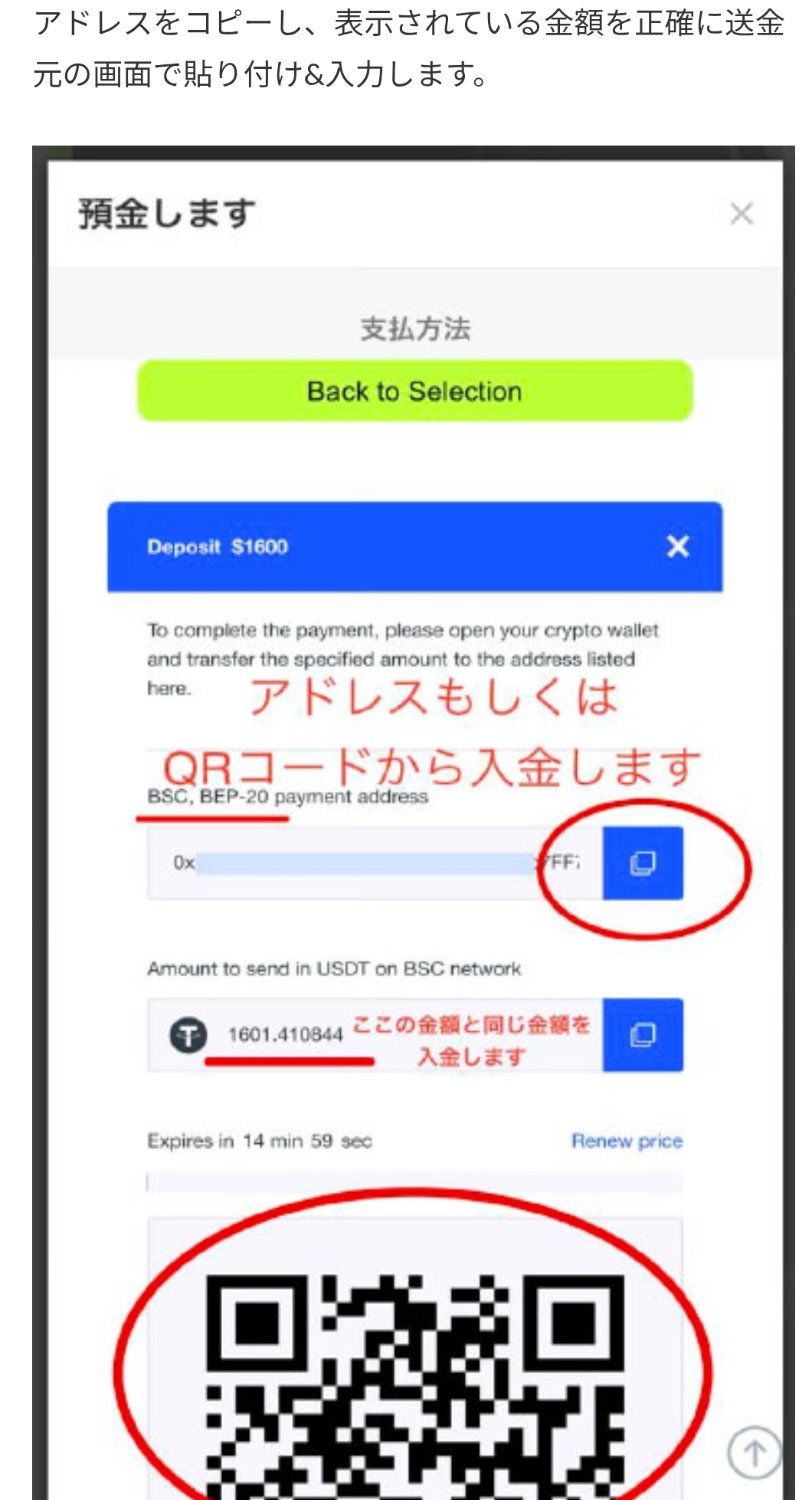
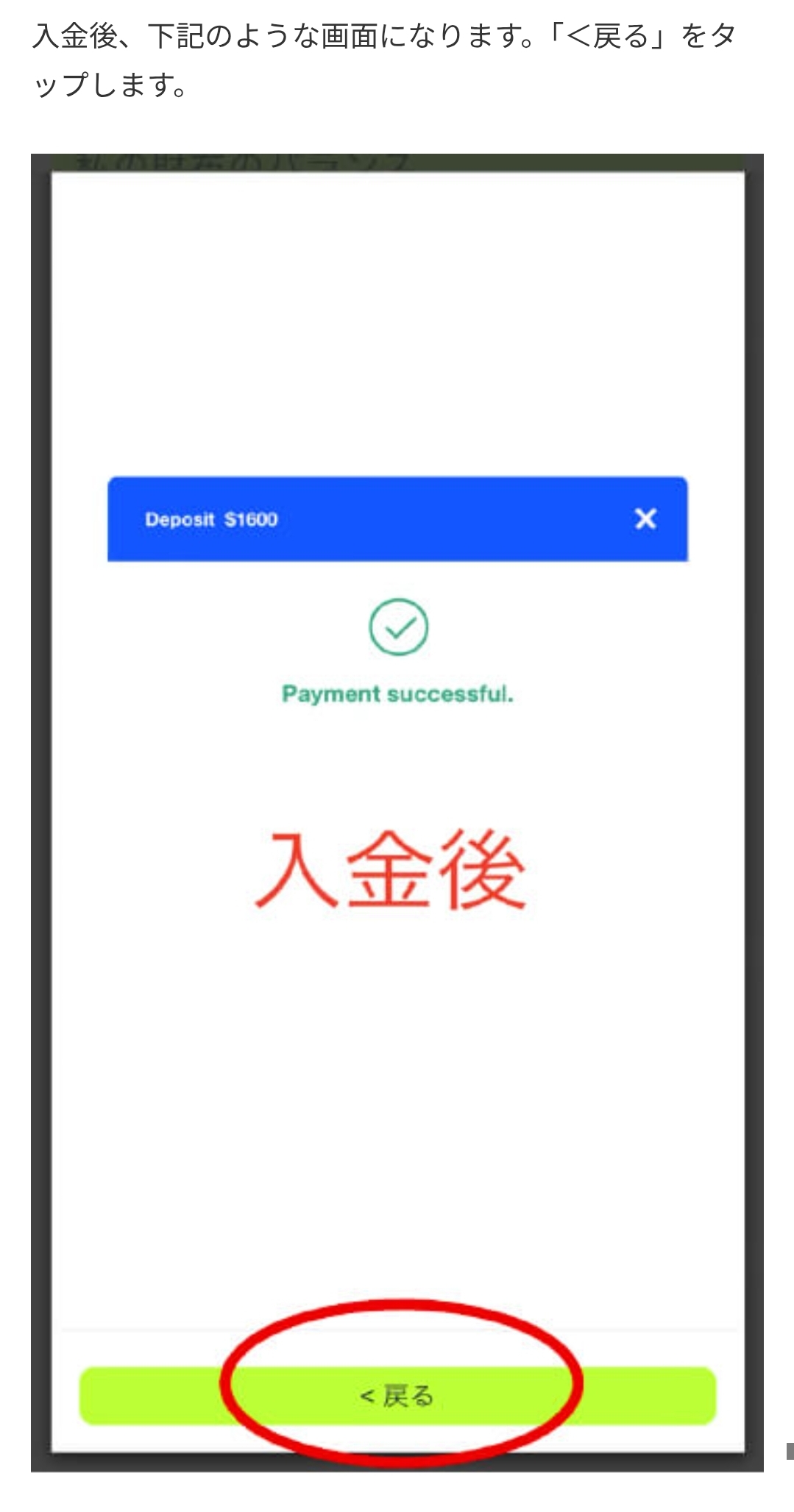
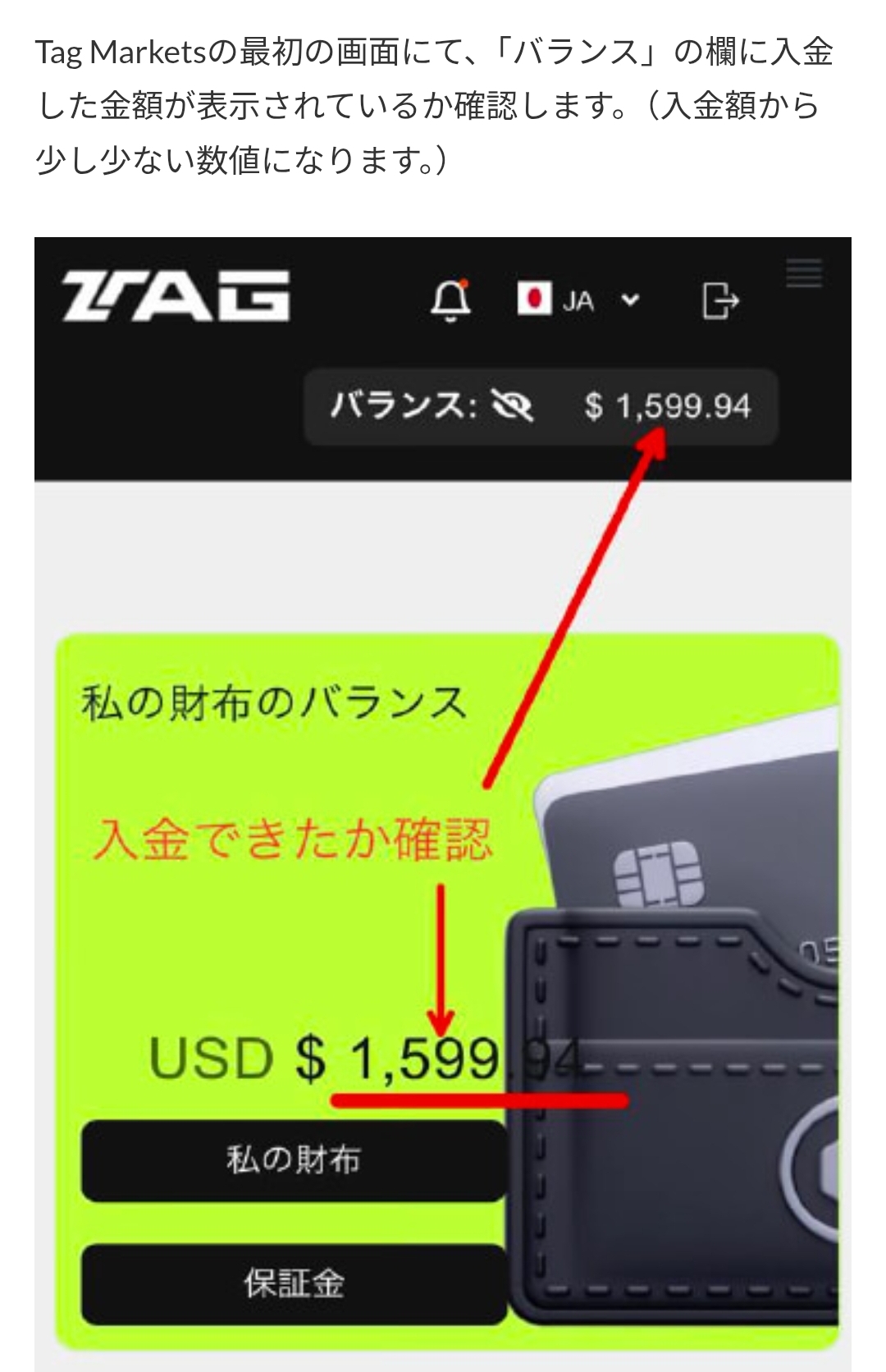
    Open the funding menu in the portal and review the currency, network, minimum amount, fees, destination and processing time displayed on screen.

    Transfers may be irreversible. Recheck the destination, network and amount on the official screen before sending funds.
    Screen 1: Review the funding screen and transfer terms
    Screen 01
    Screen 2: Review the funding screen and transfer terms
    Screen 02
    Screen 3: Review the funding screen and transfer terms
    Screen 03
    Screen 4: Review the funding screen and transfer terms
    Screen 04
    Screen 5: Review the funding screen and transfer terms
    Screen 05
    Screen 6: Review the funding screen and transfer terms
    Screen 06
    Screen 7: Review the funding screen and transfer terms
    Screen 07
    Screen 8: Review the funding screen and transfer terms
    Screen 08
    Screen 9: Review the funding screen and transfer terms
    Screen 09
    Screen 10: Review the funding screen and transfer terms
    Screen 10
    Screen 11: Review the funding screen and transfer terms
    Screen 11
    Screen 12: Review the funding screen and transfer terms
    Screen 12
    Screen 13: Review the funding screen and transfer terms
    Screen 13
    Screen 14: Review the funding screen and transfer terms
    Screen 14
    Screen 15: Review the funding screen and transfer terms
    Screen 15
  2. 02

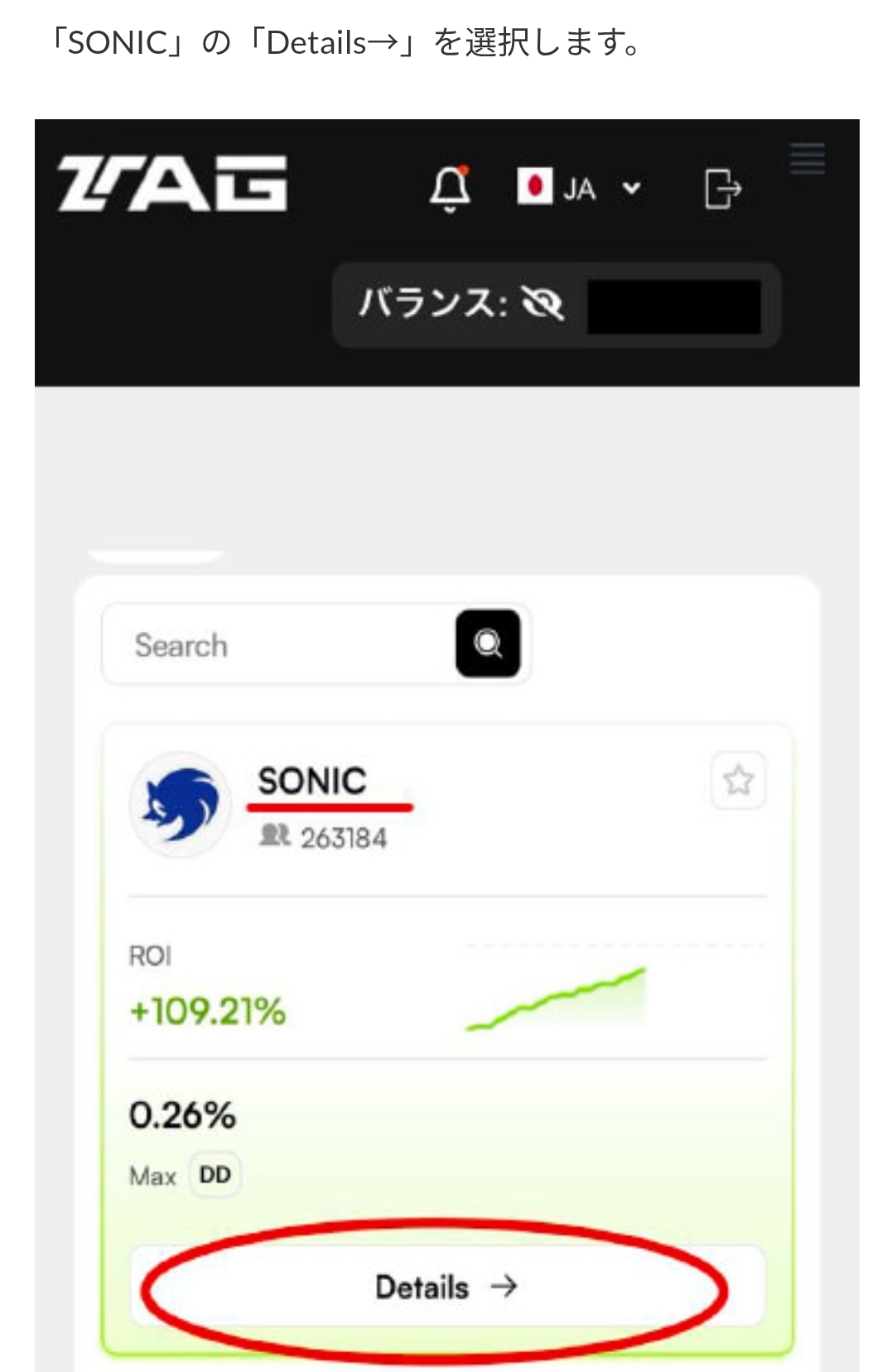
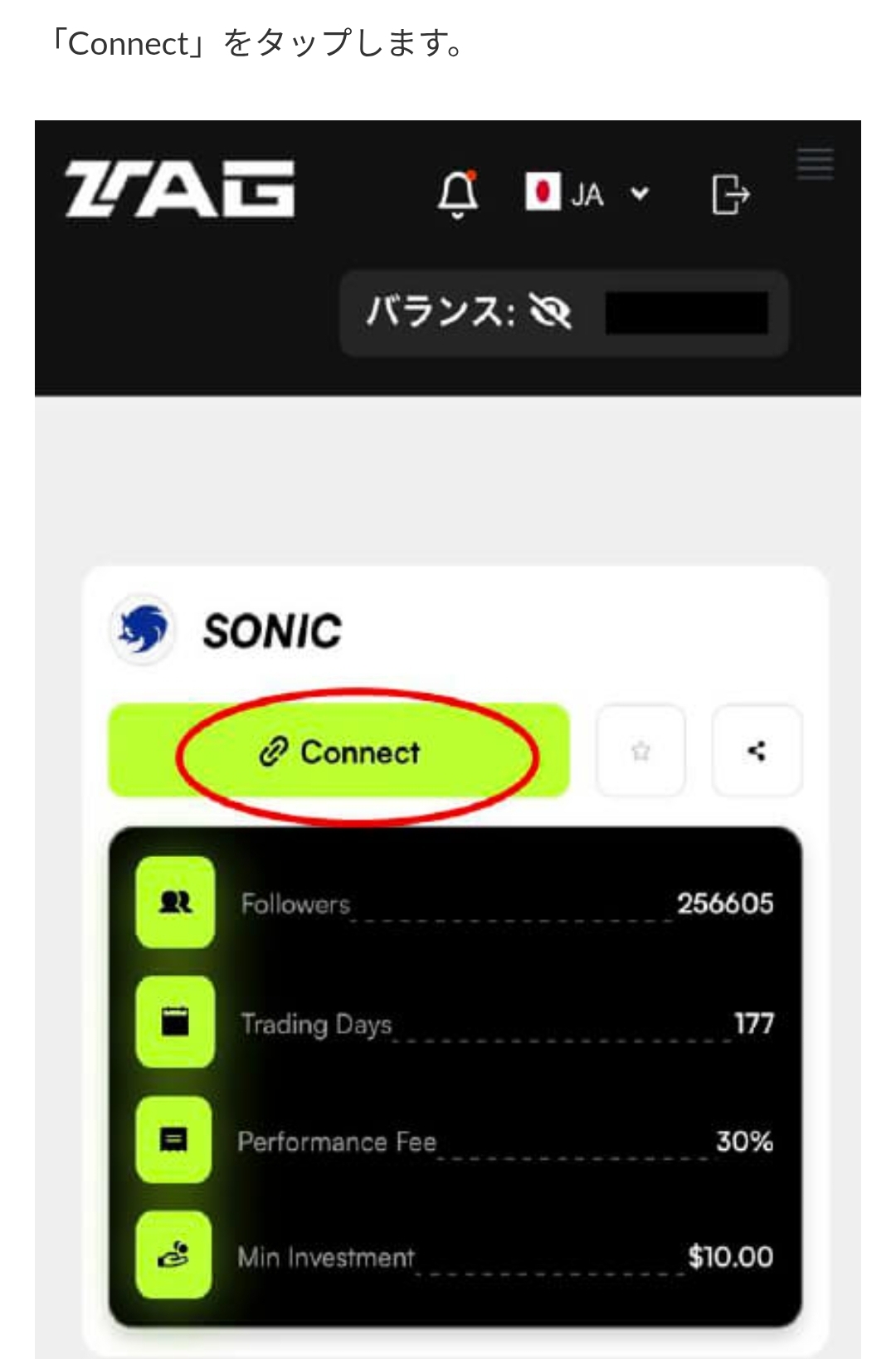
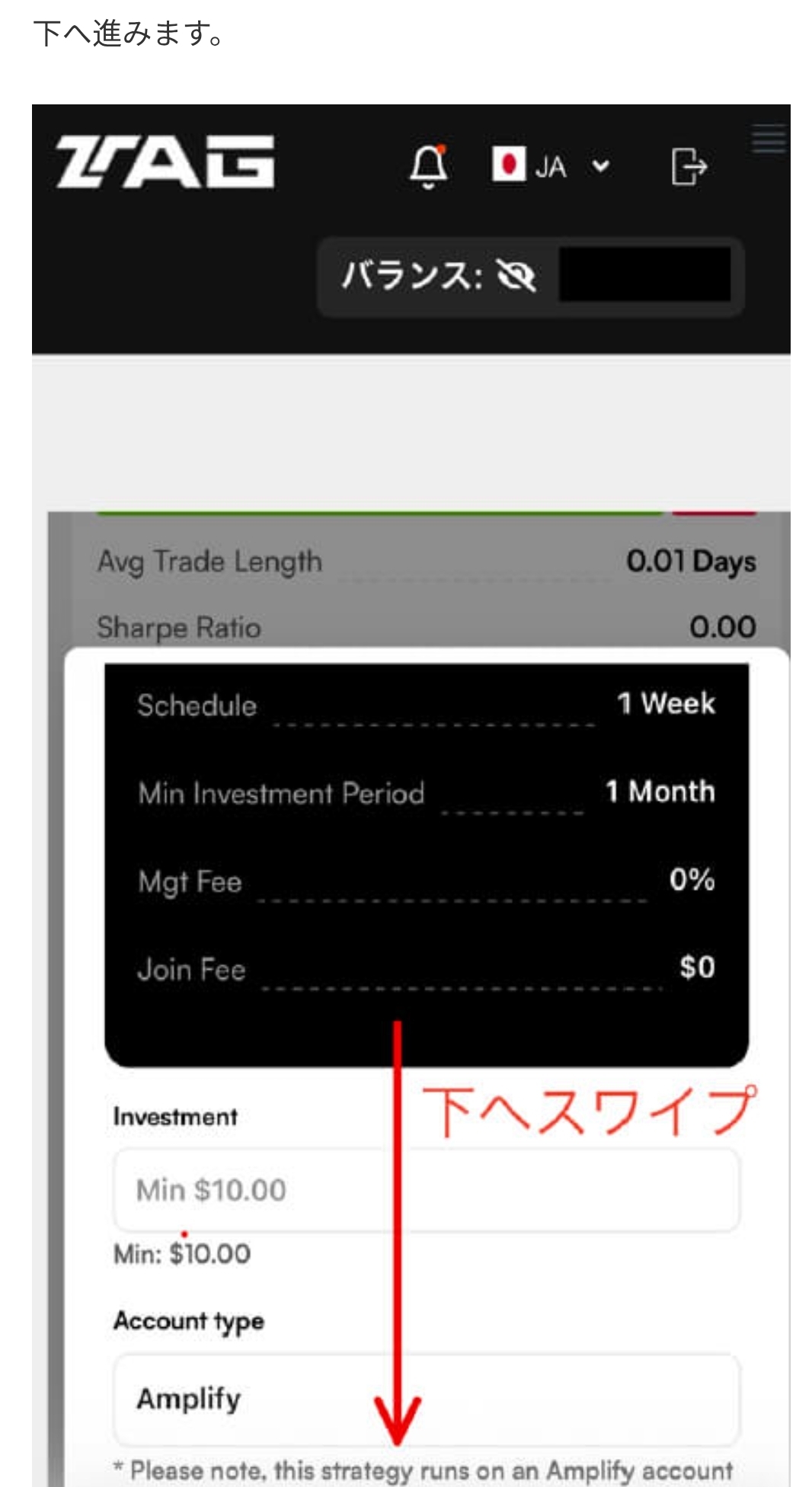
    Review SONIC terms and open the connection screen

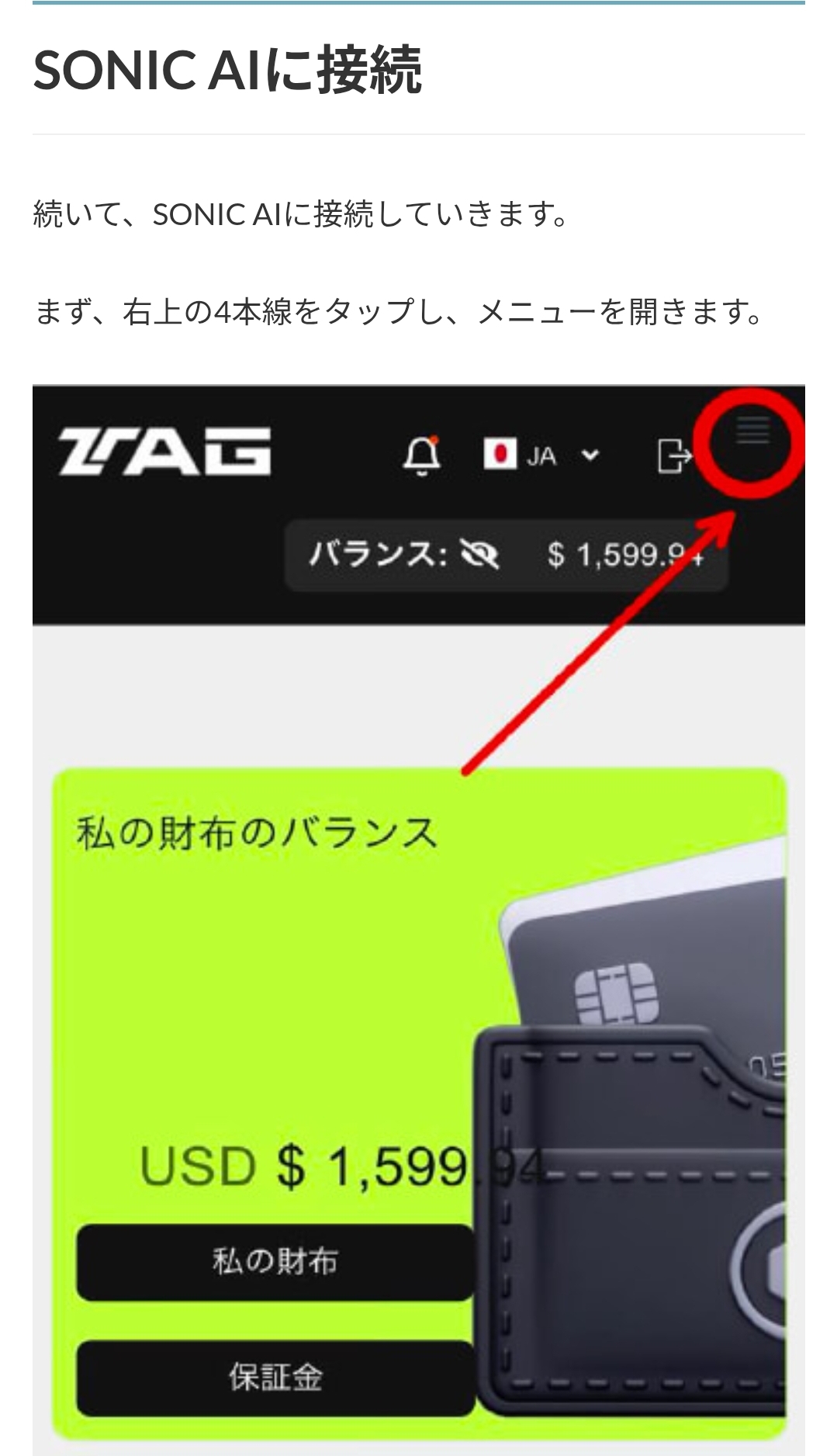
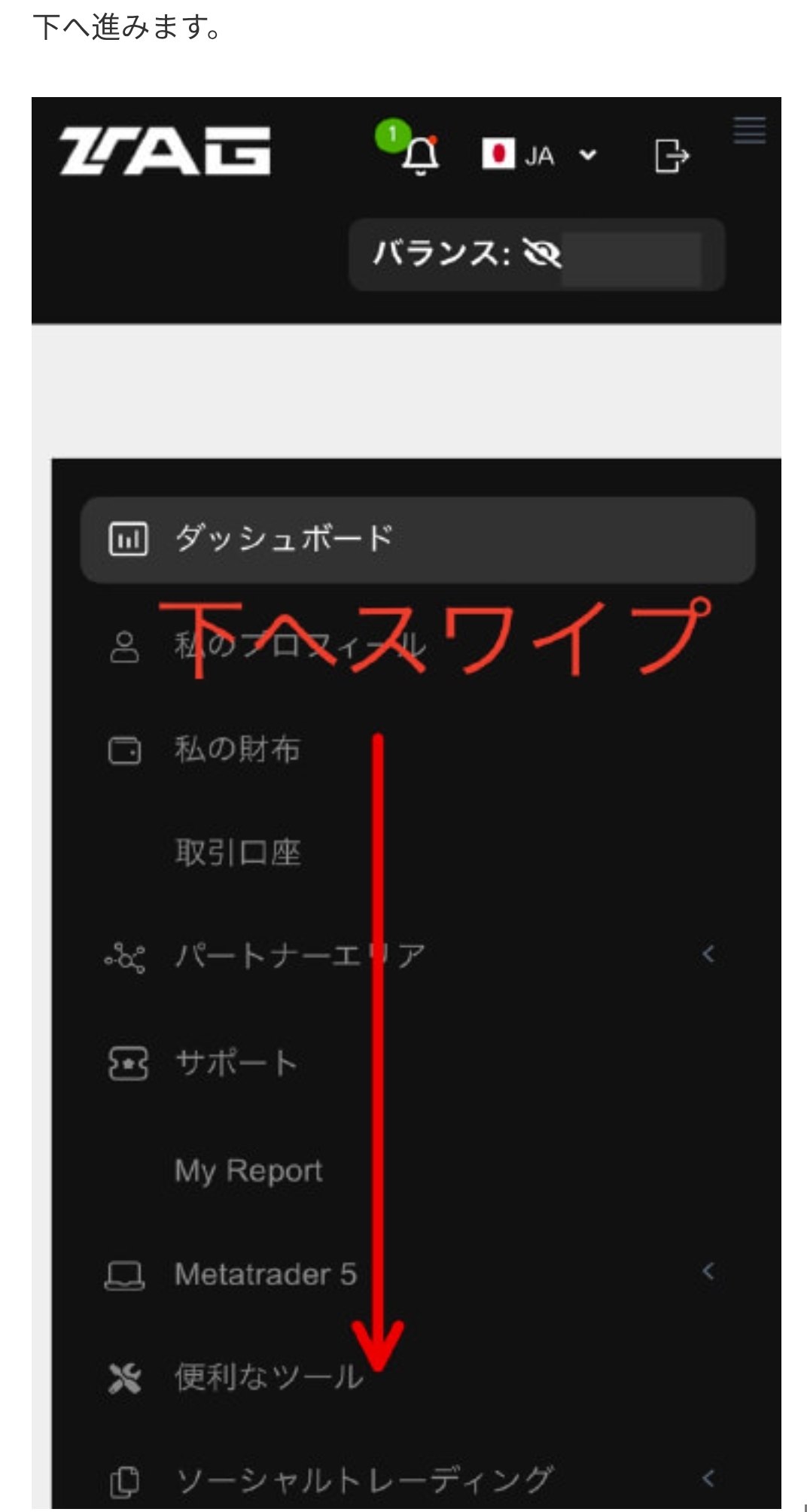
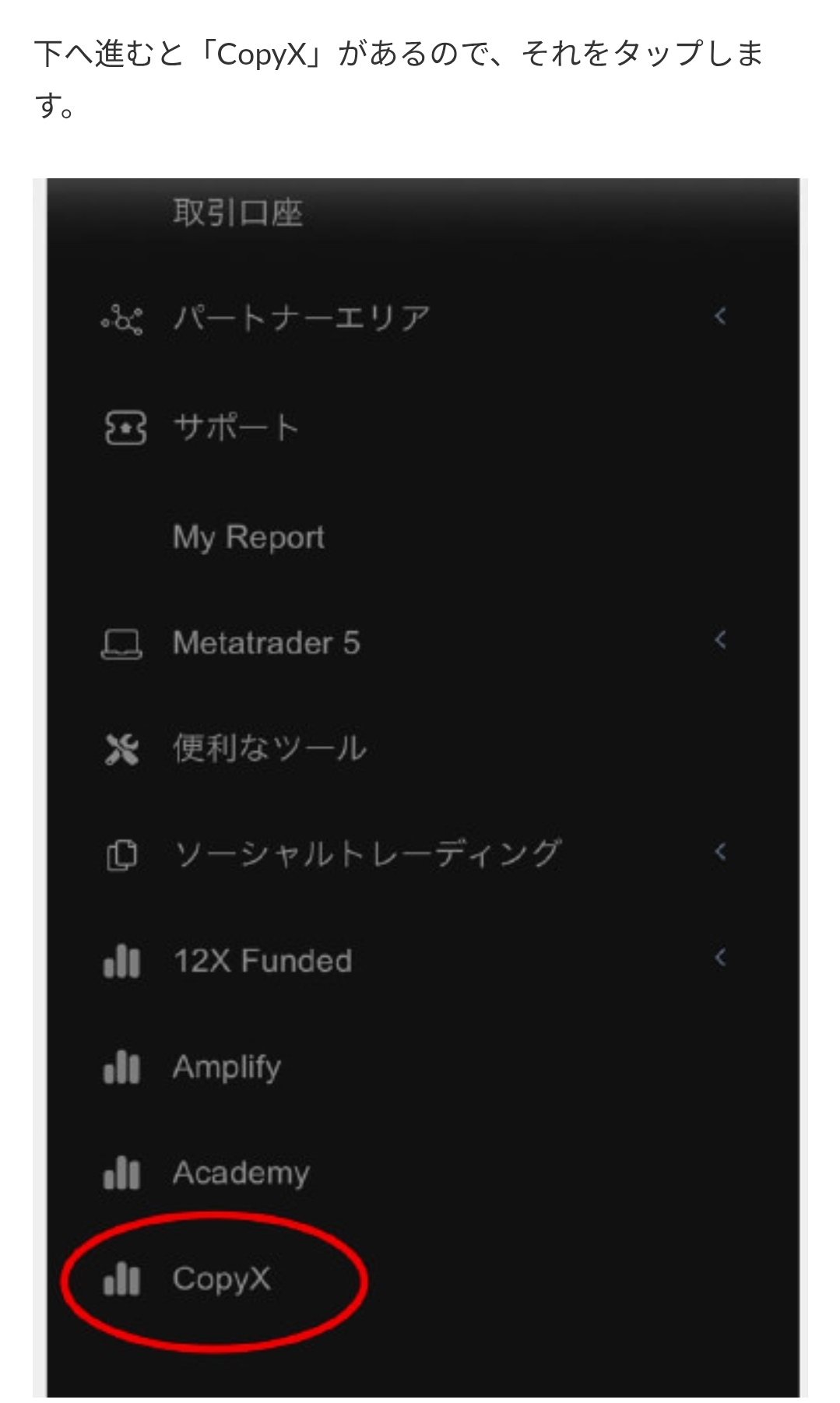
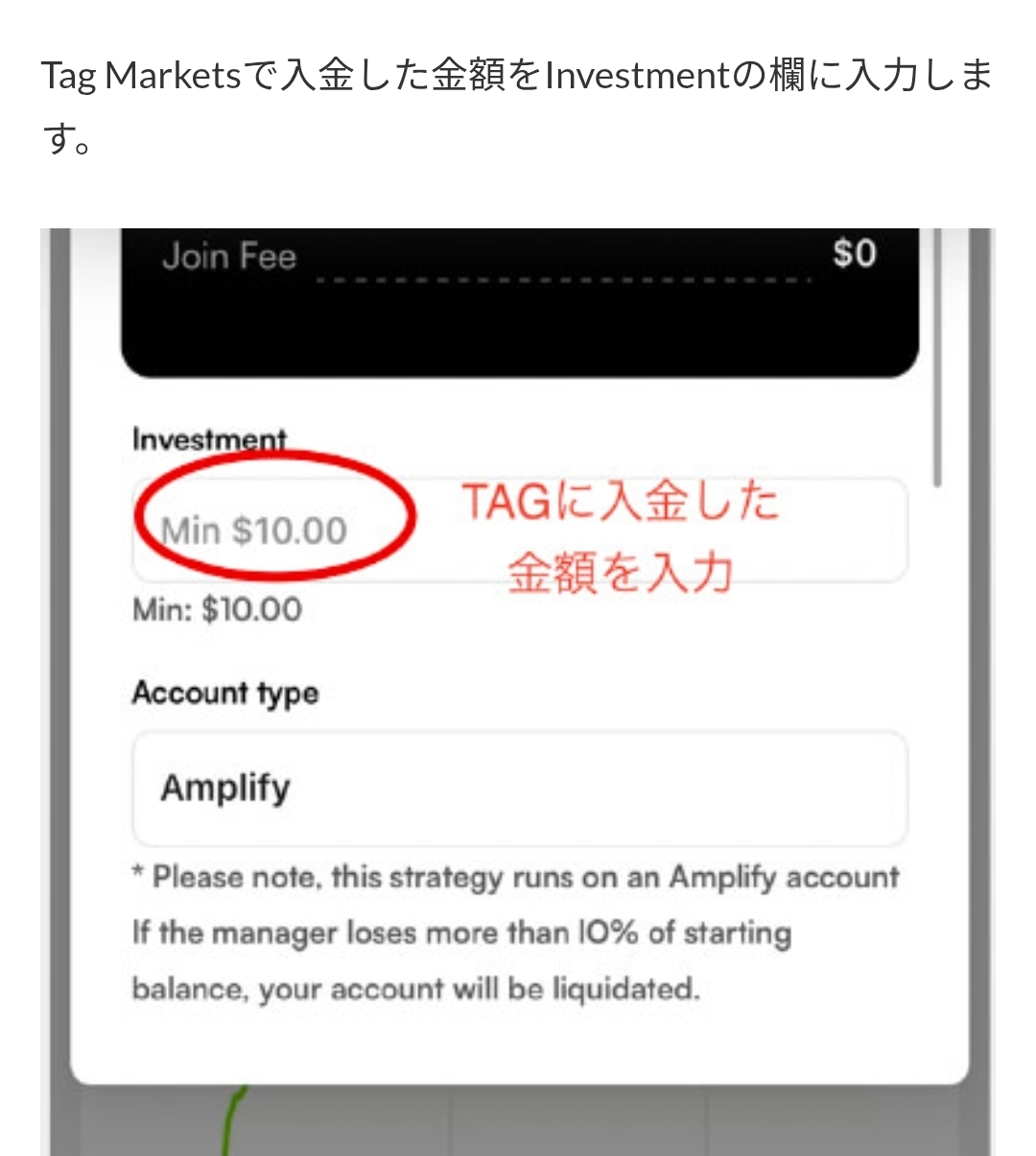
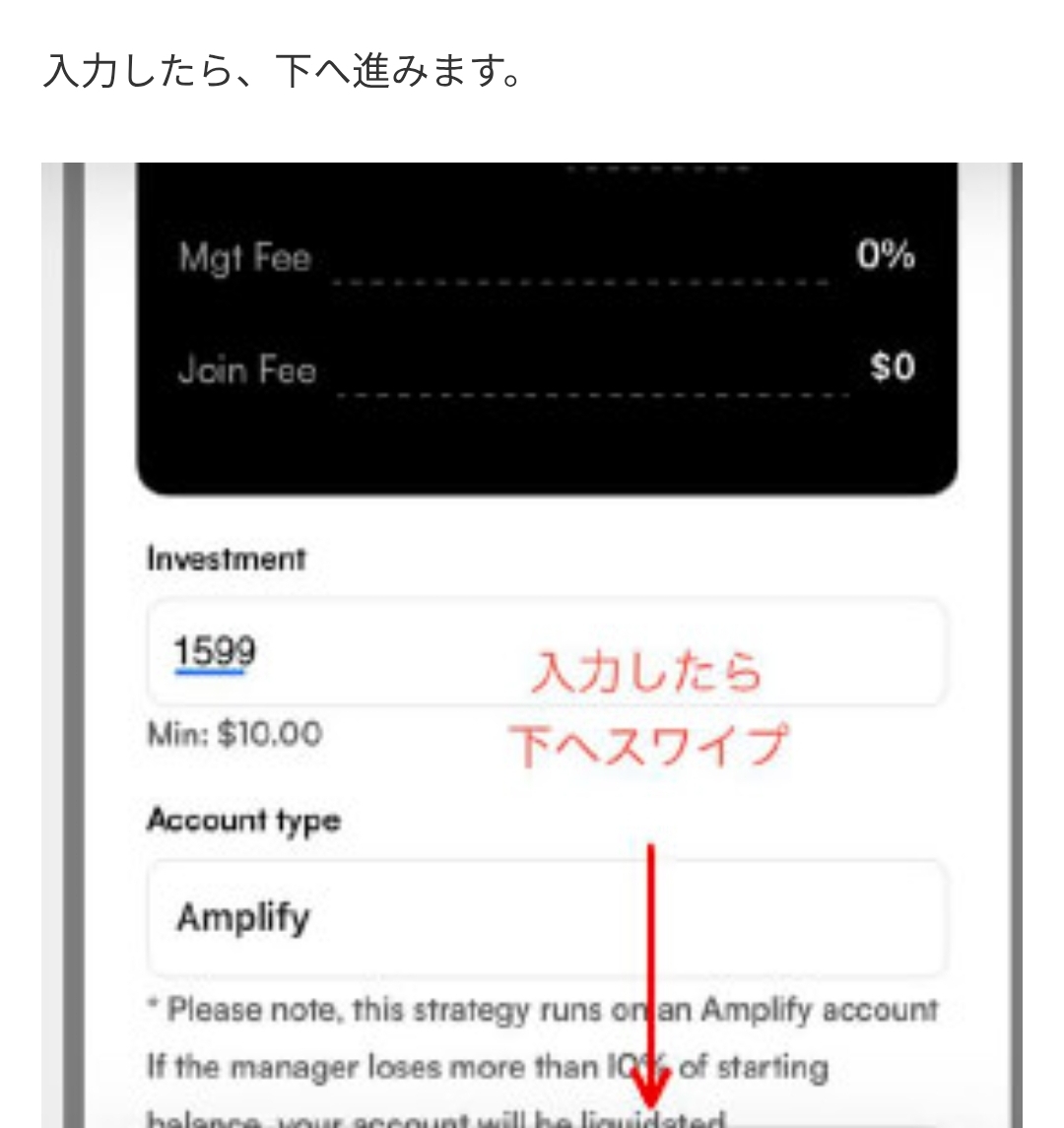
    Select SONIC in Strategies and, before Connect, independently review the displayed fees, minimum amount, term, account type and liquidation or stop conditions.

    Historical displays, follower counts and other figures do not guarantee future trading results or availability.
    Screen 16: Review SONIC terms and open the connection screen
    Screen 16
    Screen 17: Review SONIC terms and open the connection screen
    Screen 17
    Screen 18: Review SONIC terms and open the connection screen
    Screen 18
  3. 03

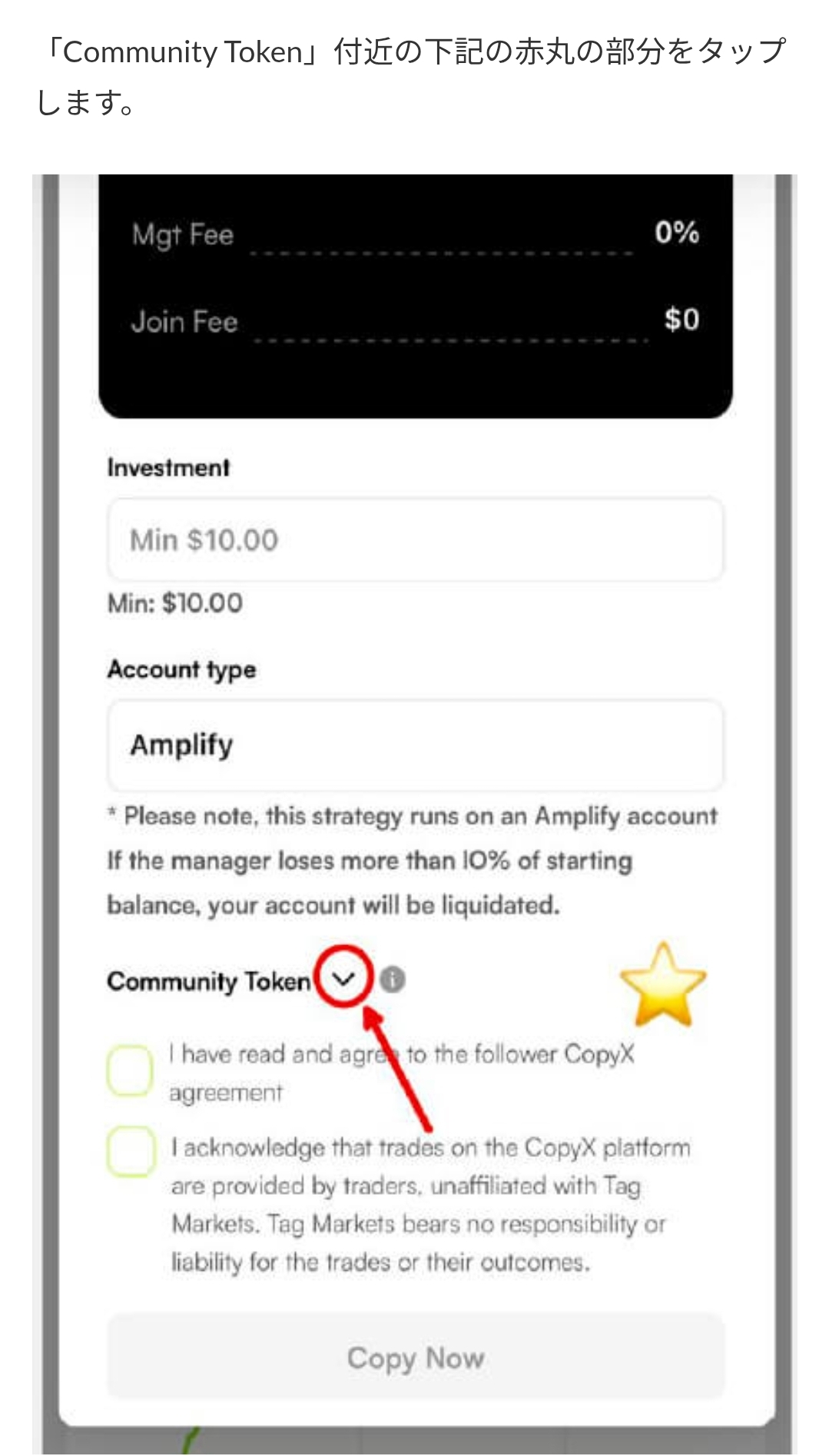
    Review code, agreements and copy settings

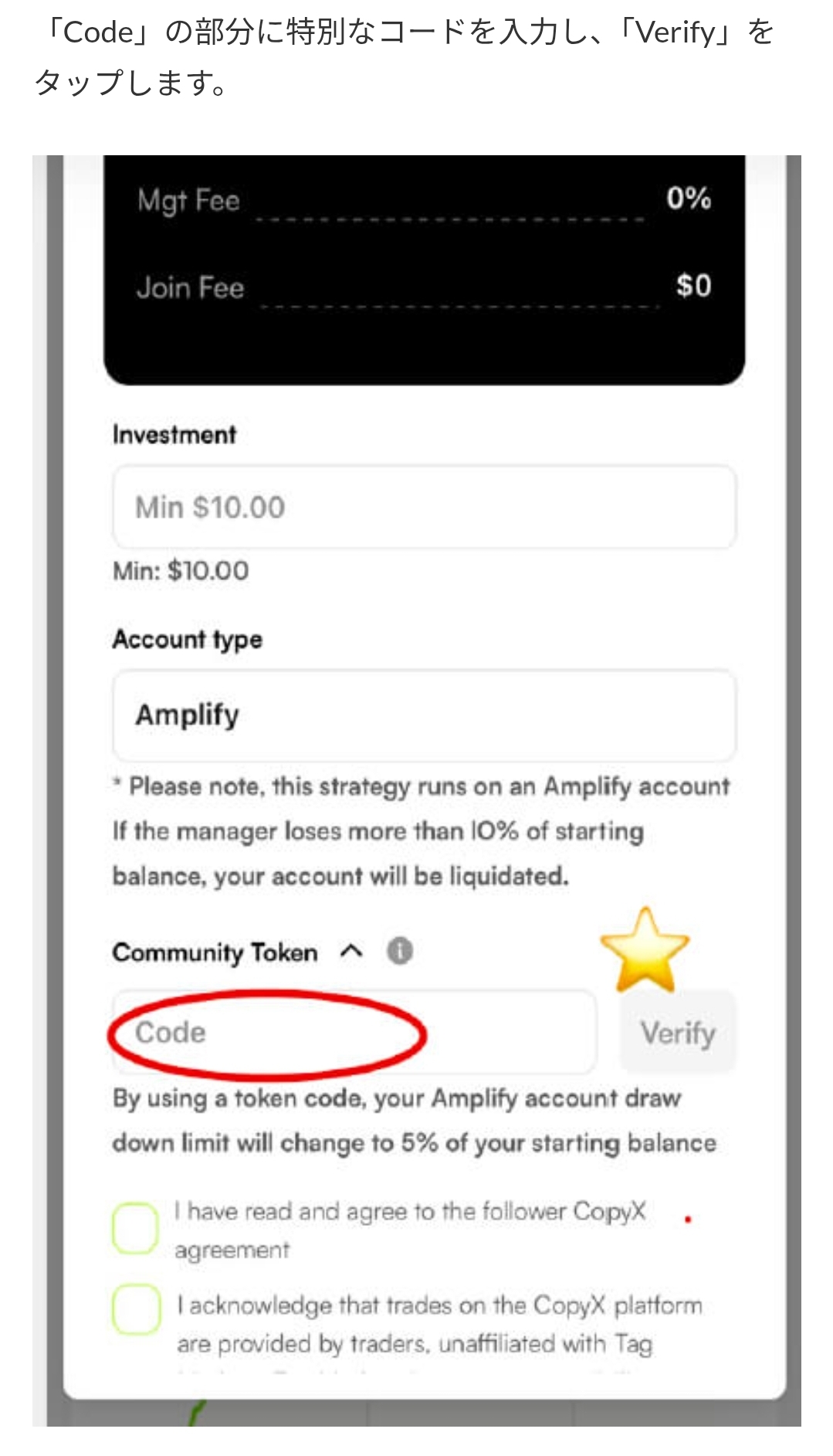
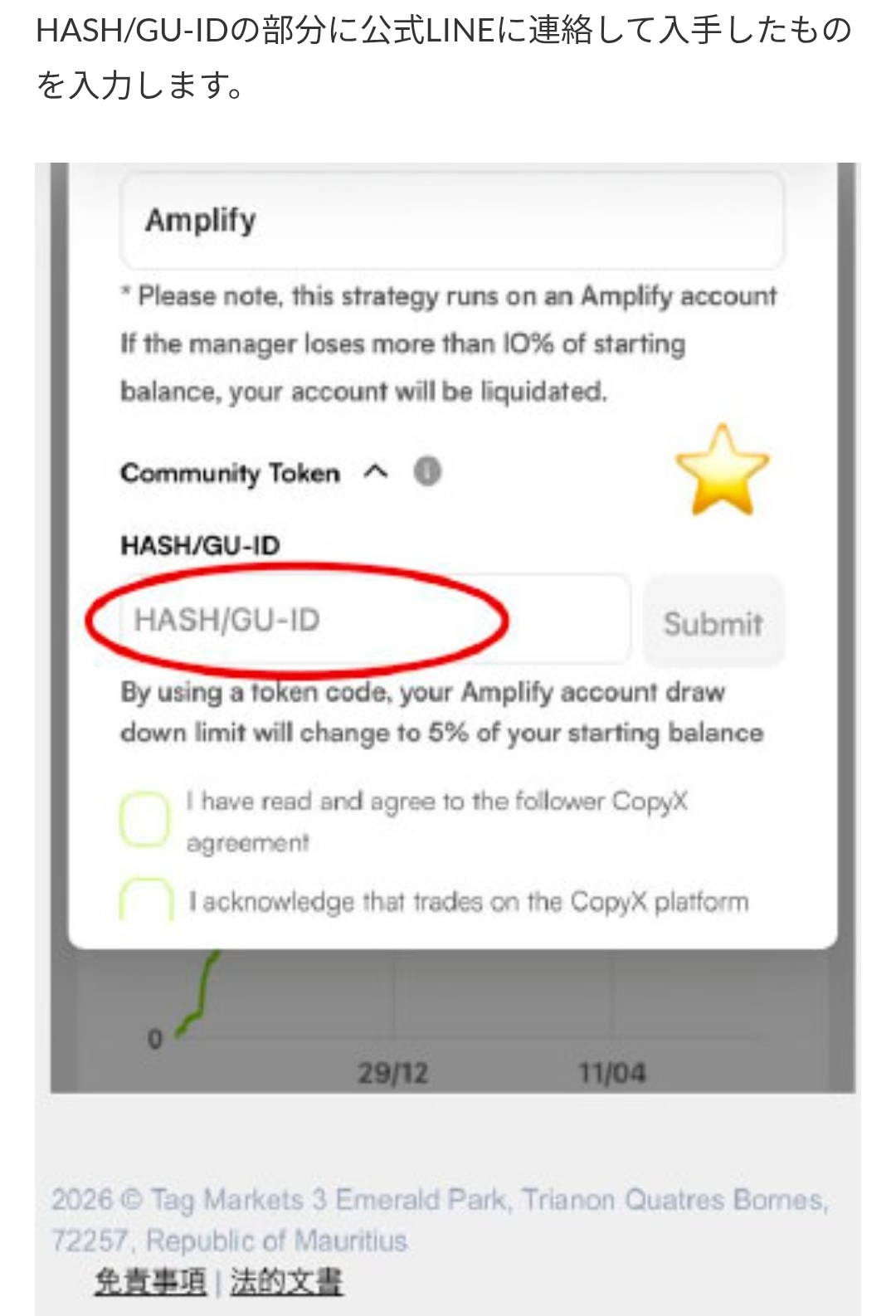
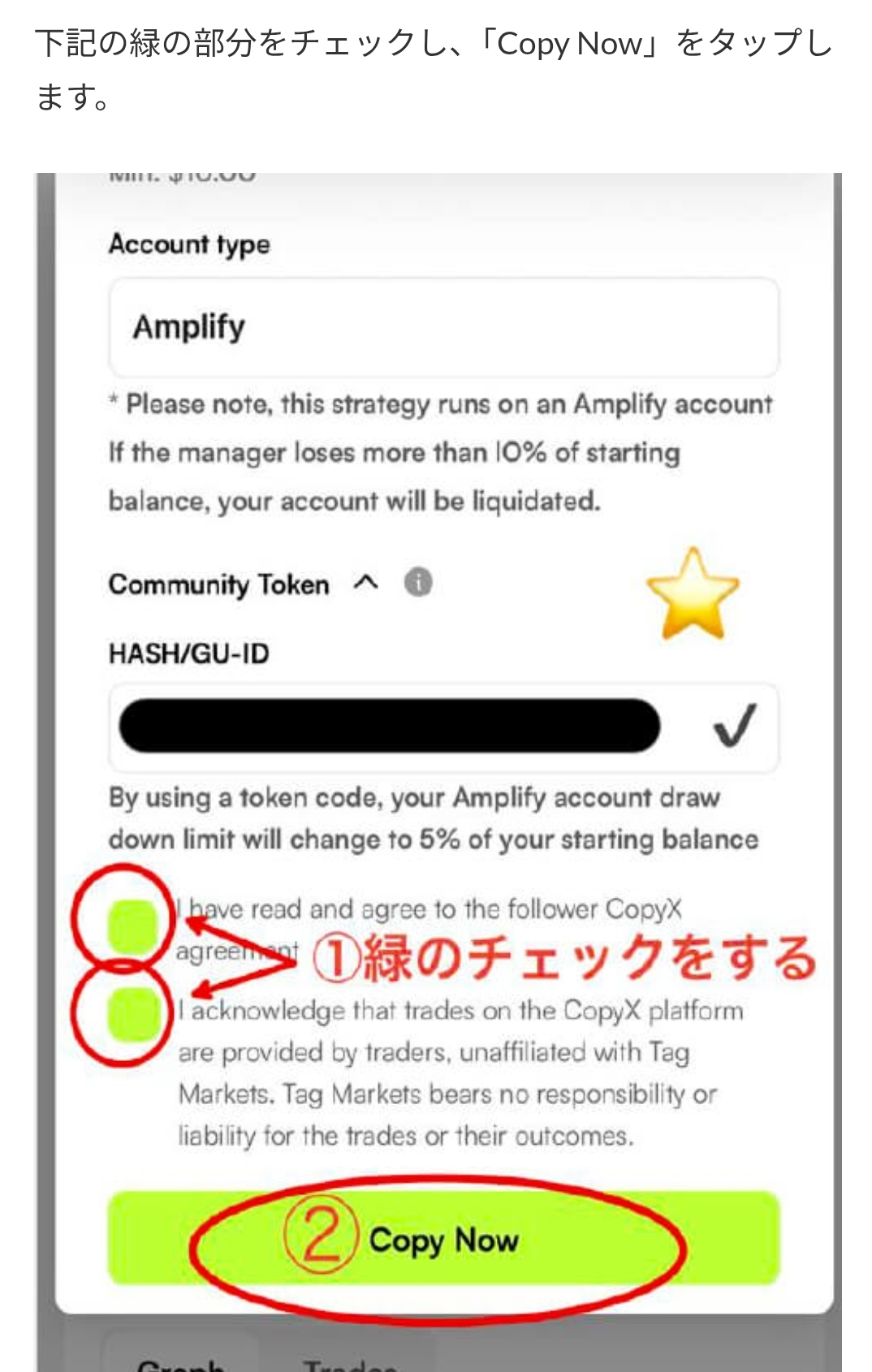
    If Community Token fields appear, the user-provided guide lists “#aitech” as the Code example and “000000” for HASH/GU-ID. Read the external service's official display and terms before verifying or submitting.

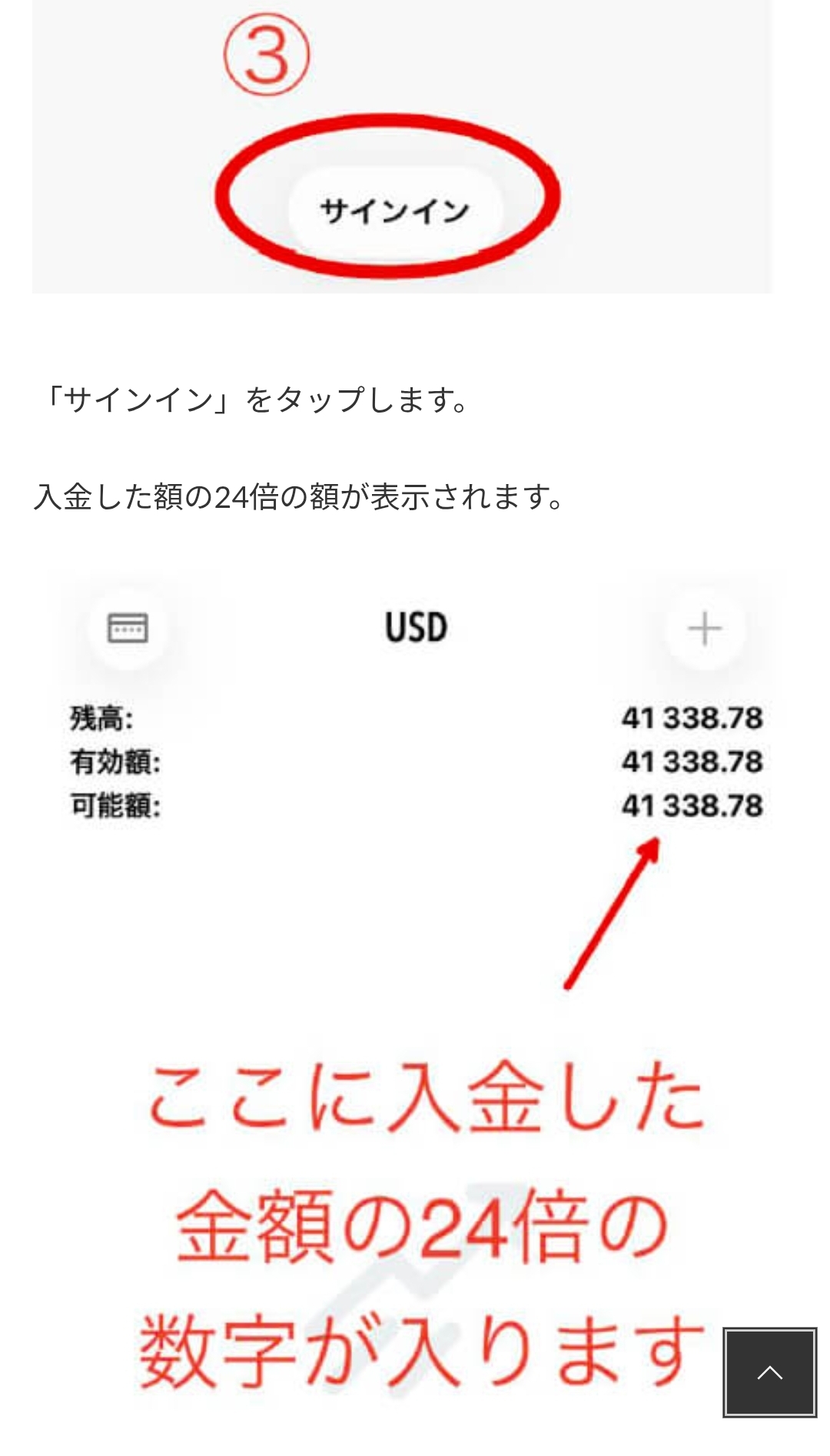
    24x, Amplify or leverage labels do not guarantee capital, returns or execution. Read the on-screen drawdown and liquidation terms carefully.
    Screen 19: Review code, agreements and copy settings
    Screen 19
    Screen 20: Review code, agreements and copy settings
    Screen 20
    Screen 21: Review code, agreements and copy settings
    Screen 21
    Screen 22: Review code, agreements and copy settings
    Screen 22
    Screen 23: Review code, agreements and copy settings
    Screen 23
  4. 04

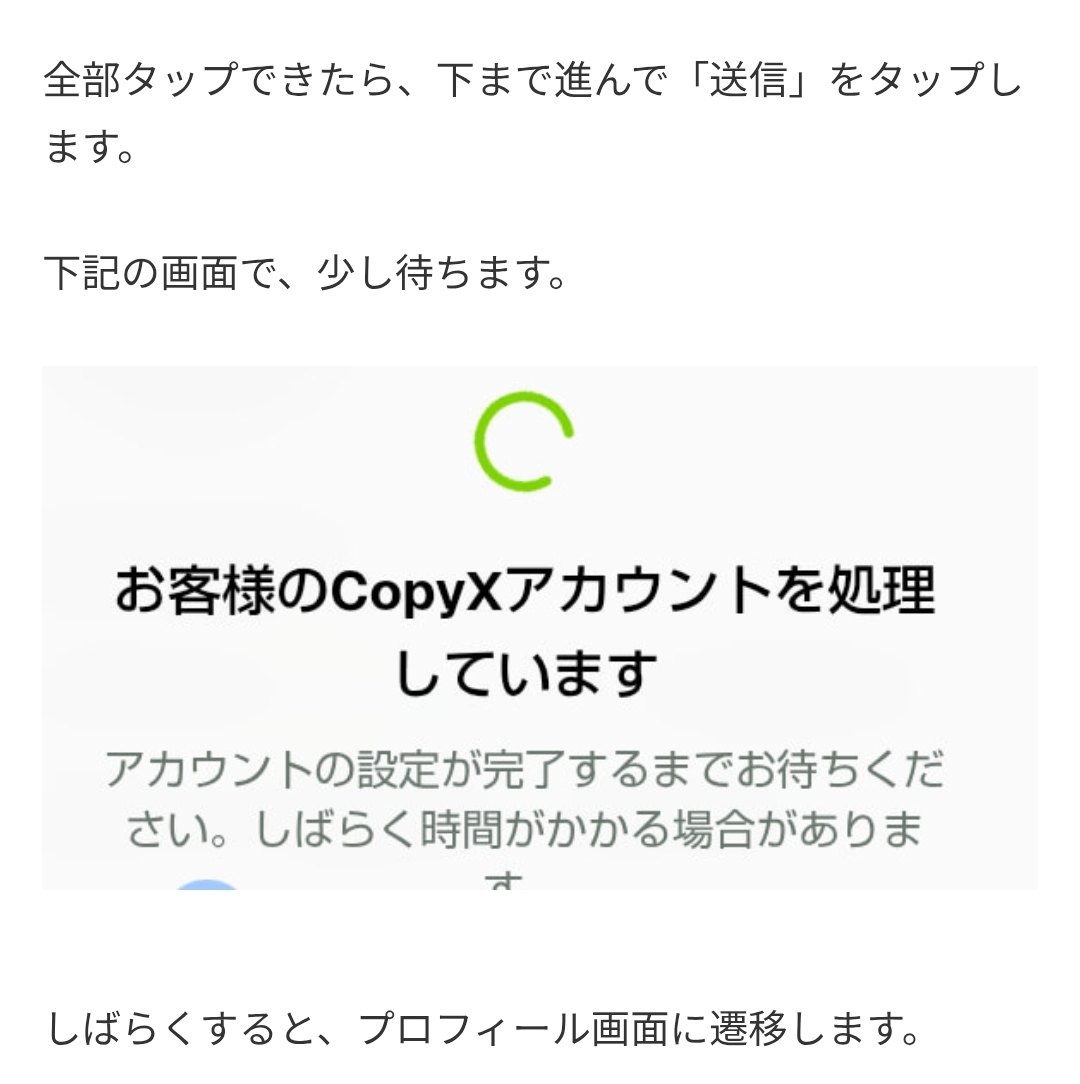
    Confirm CopyX account creation

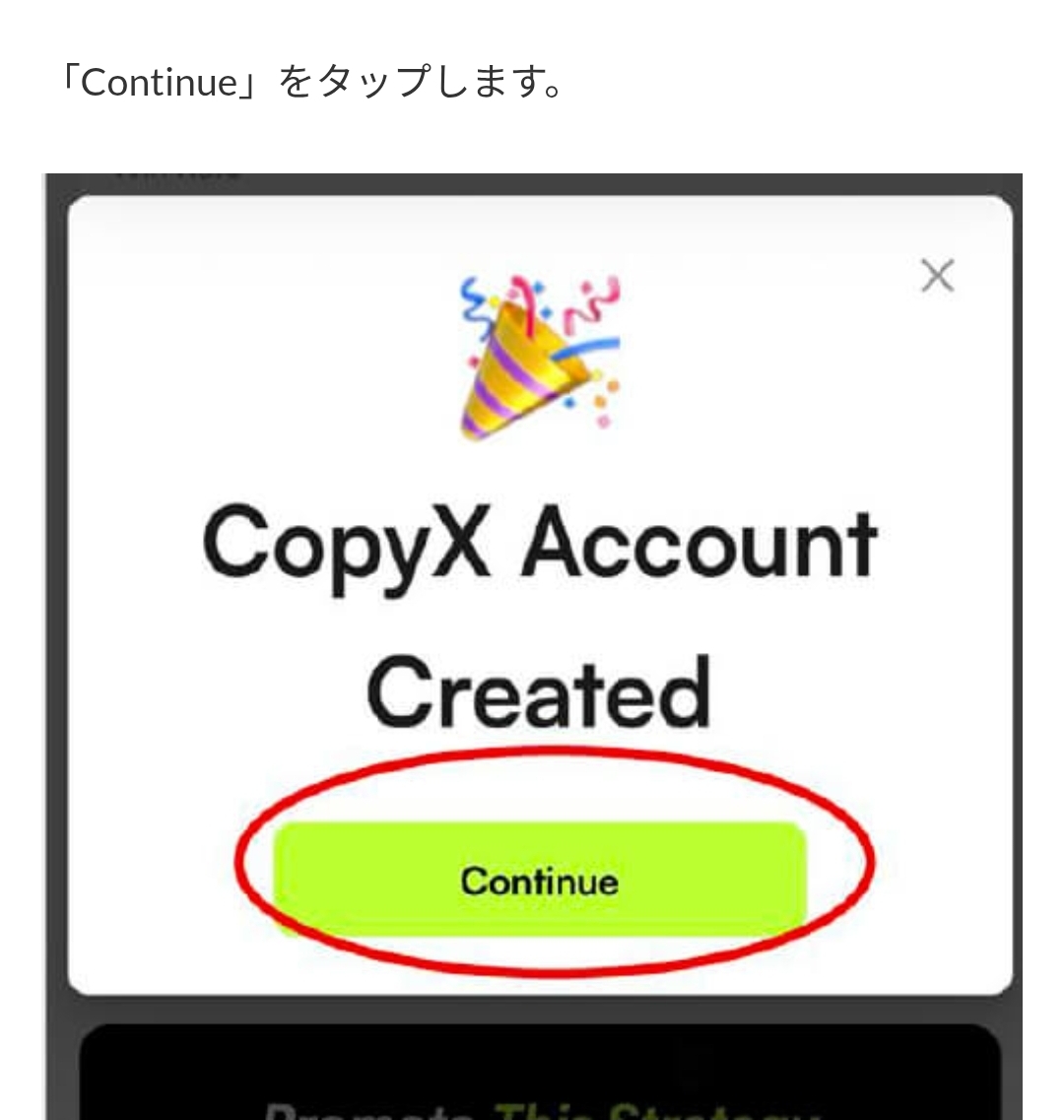
    Even if the external-service screen confirms account creation, check the account state, whether copying is active, the stop method and withdrawal terms on the official screen.

    Automatic operation, execution, uptime and returns after a copy setting are not guaranteed.
    Screen 24: Confirm CopyX account creation
    Screen 24
    Screen 25: Confirm CopyX account creation
    Screen 25
  5. 05

    Review the official MT5 app and server

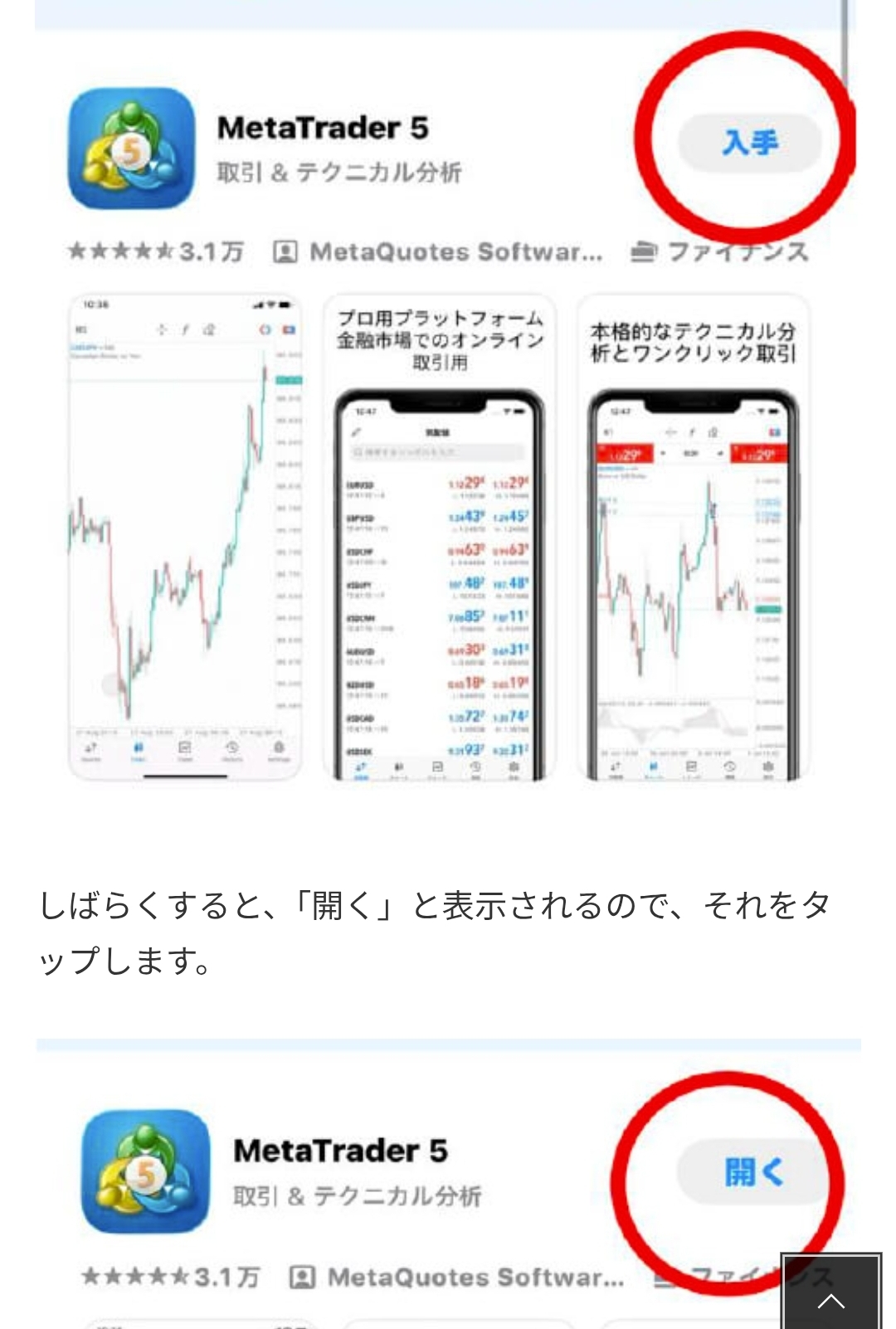
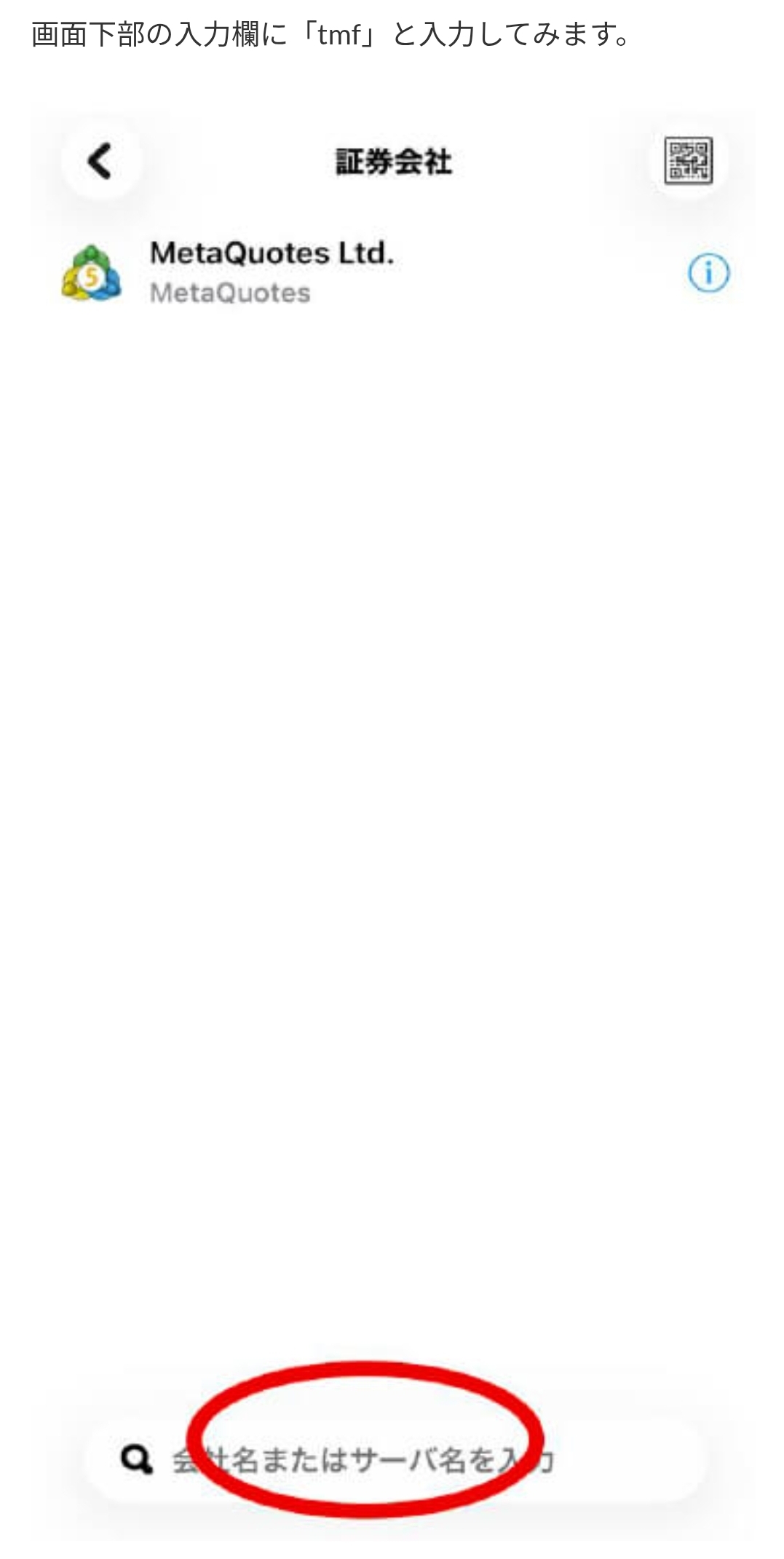
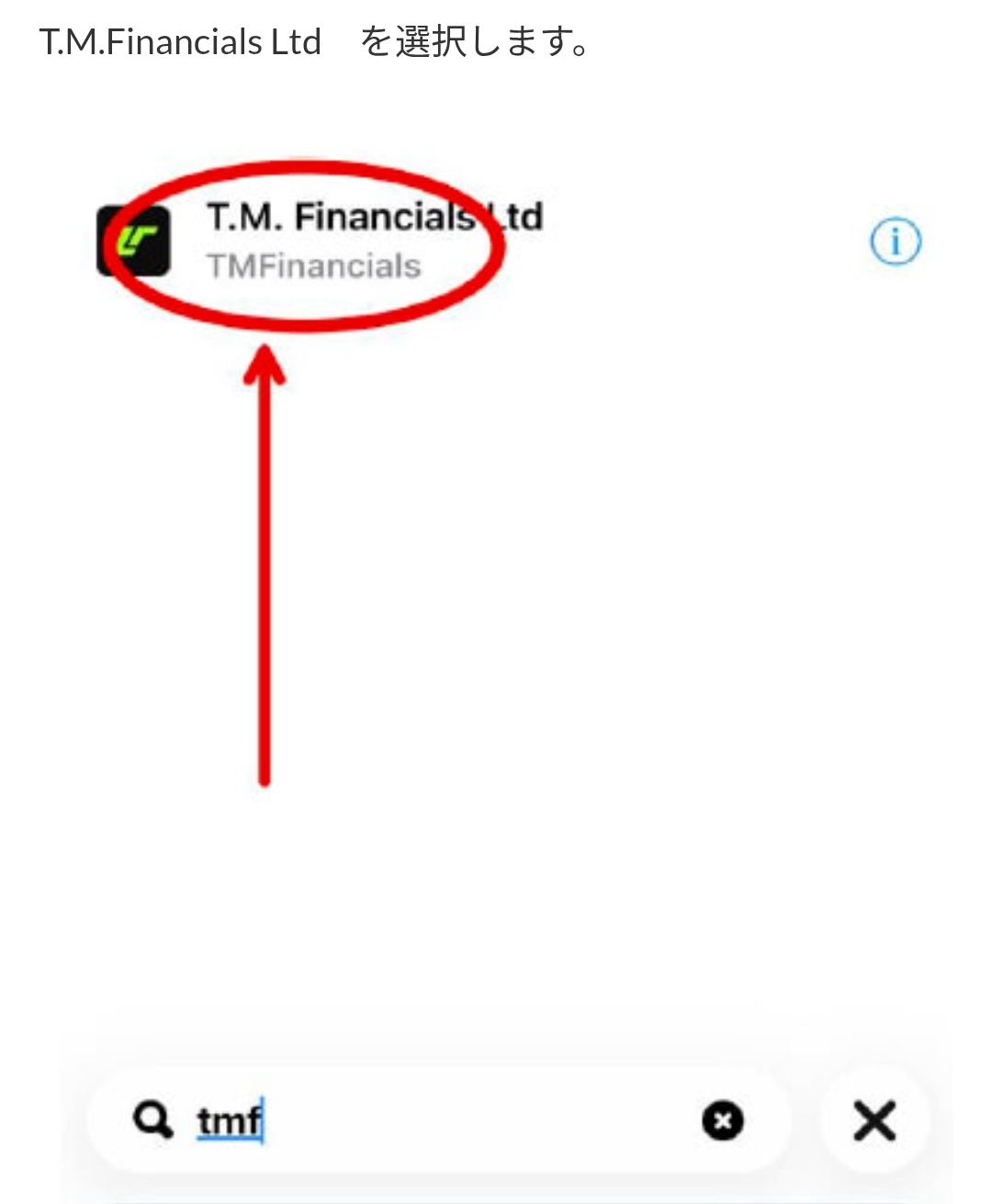
    Get MT5 from an official store and match the displayed search result and server name with your own external-service account information.

    Do not enter credentials into lookalike apps or servers.
    Screen 26: Review the official MT5 app and server
    Screen 26
    Screen 27: Review the official MT5 app and server
    Screen 27
    Screen 28: Review the official MT5 app and server
    Screen 28
  6. 06

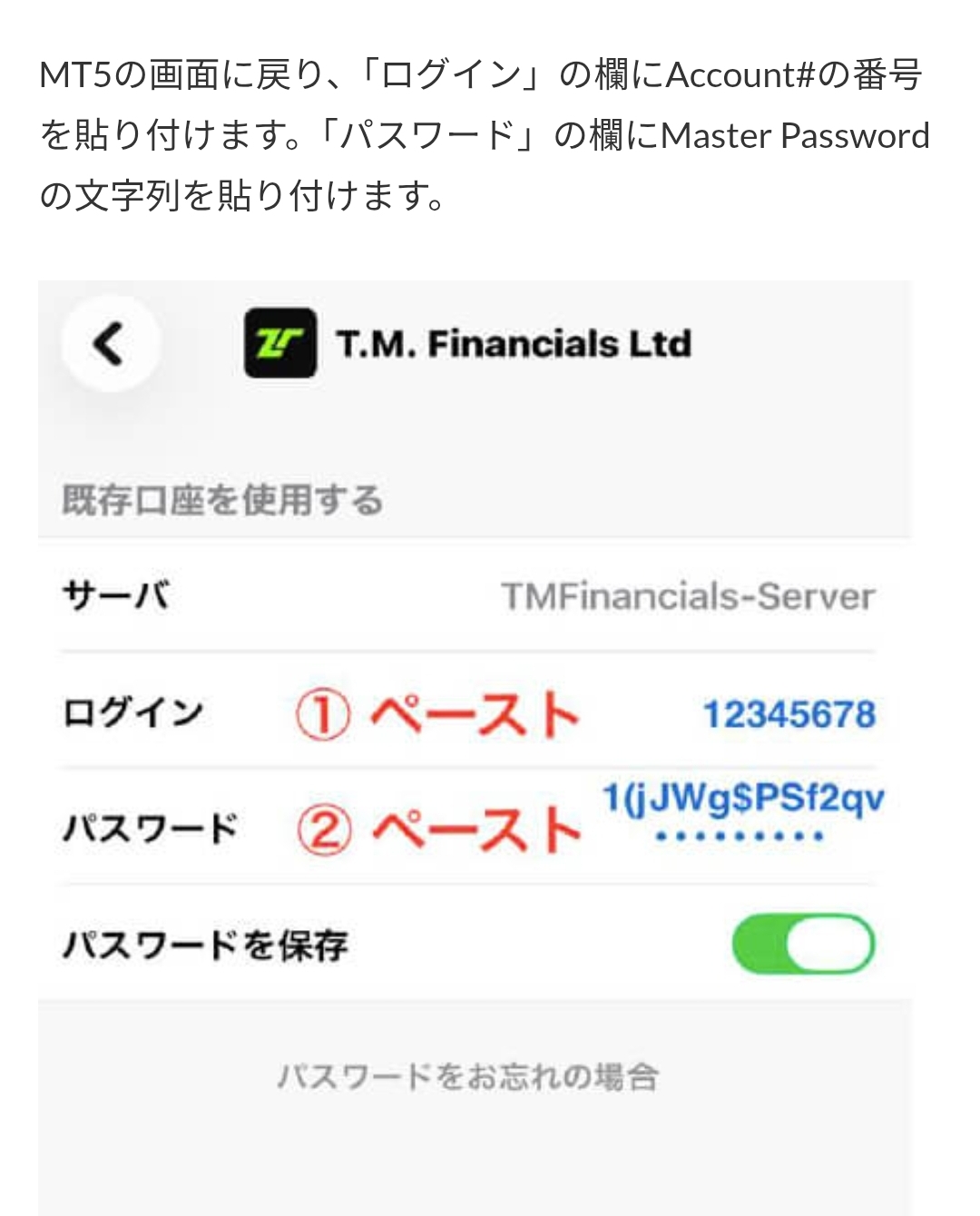
    Sign in to MT5 using only your own credentials

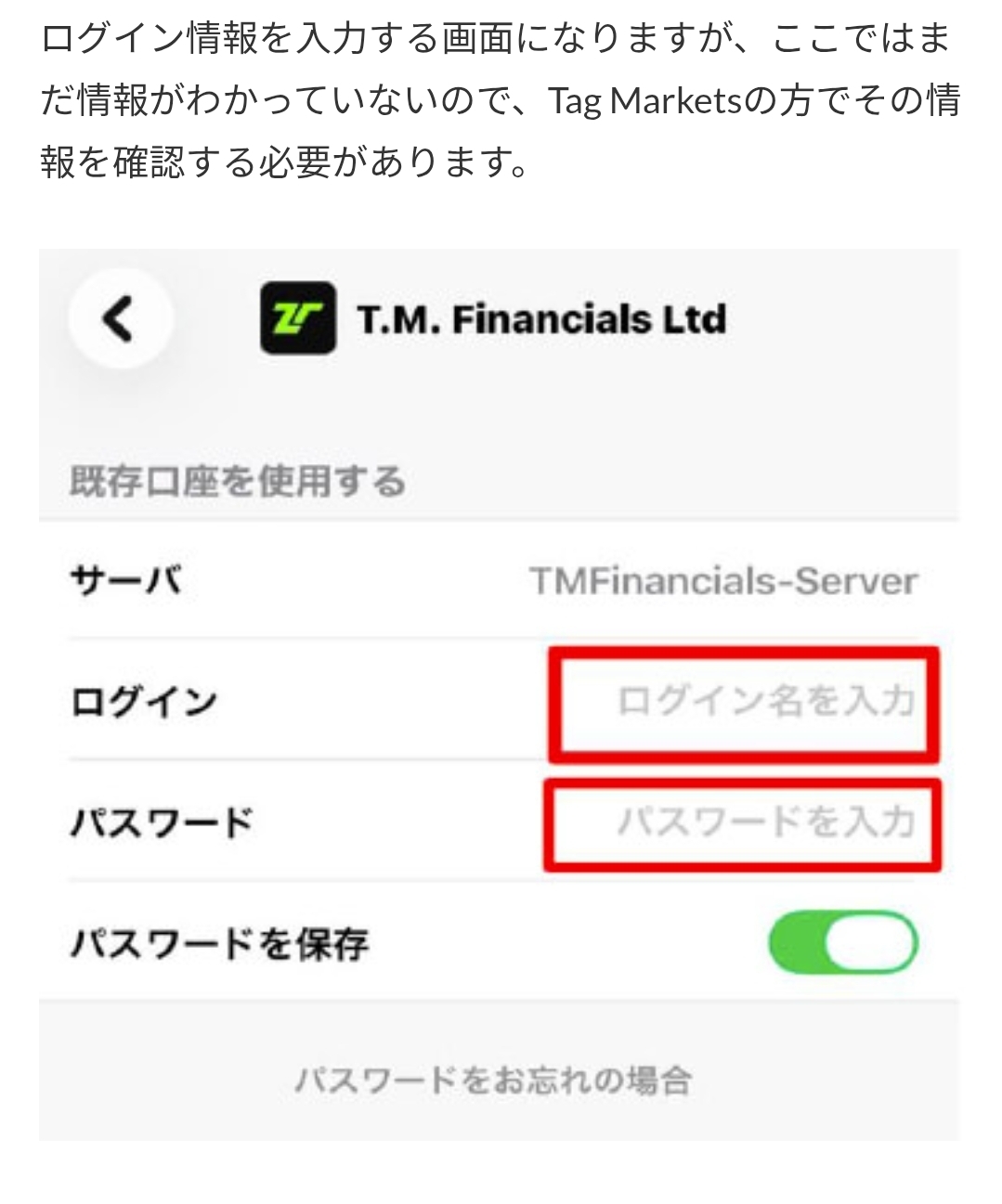
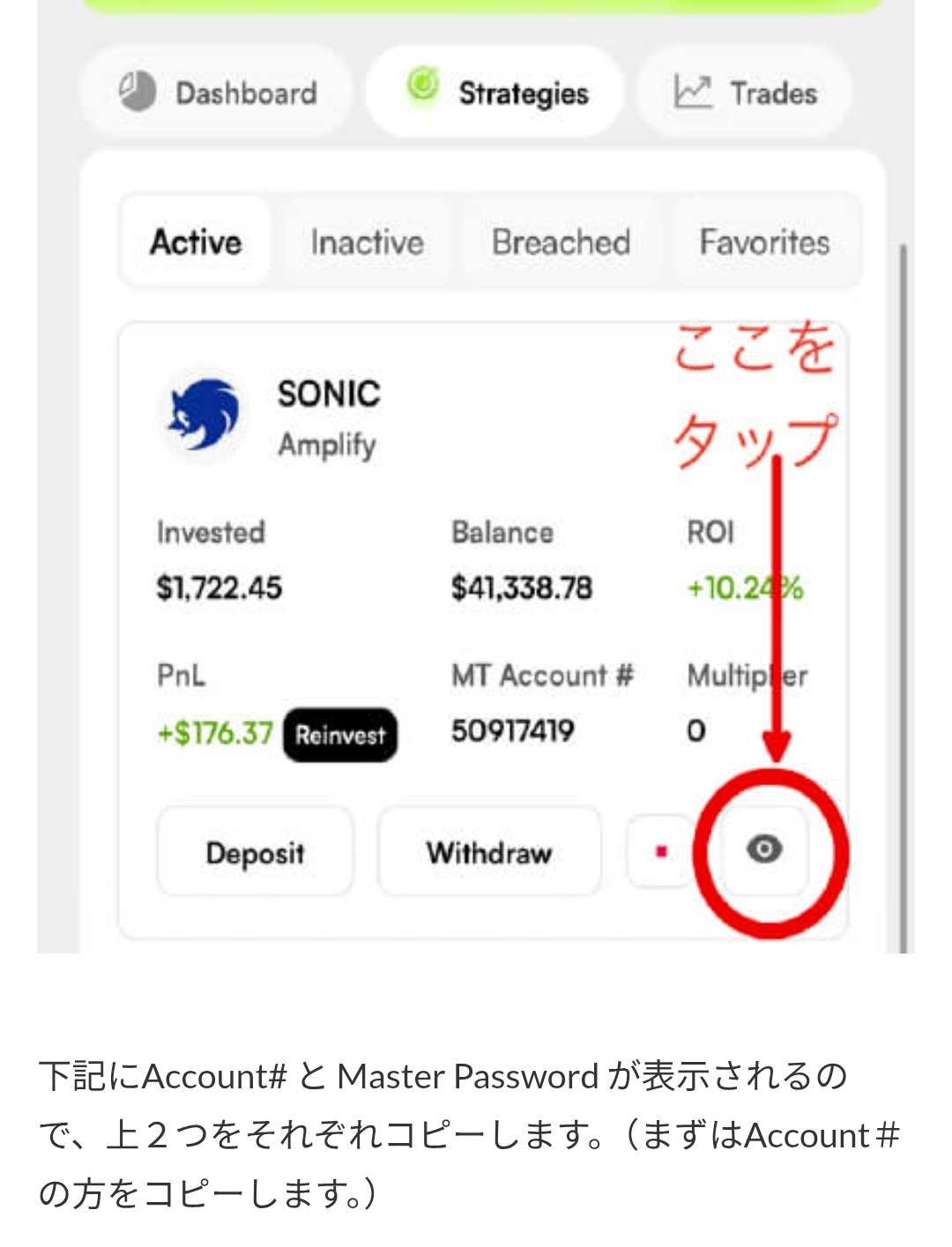
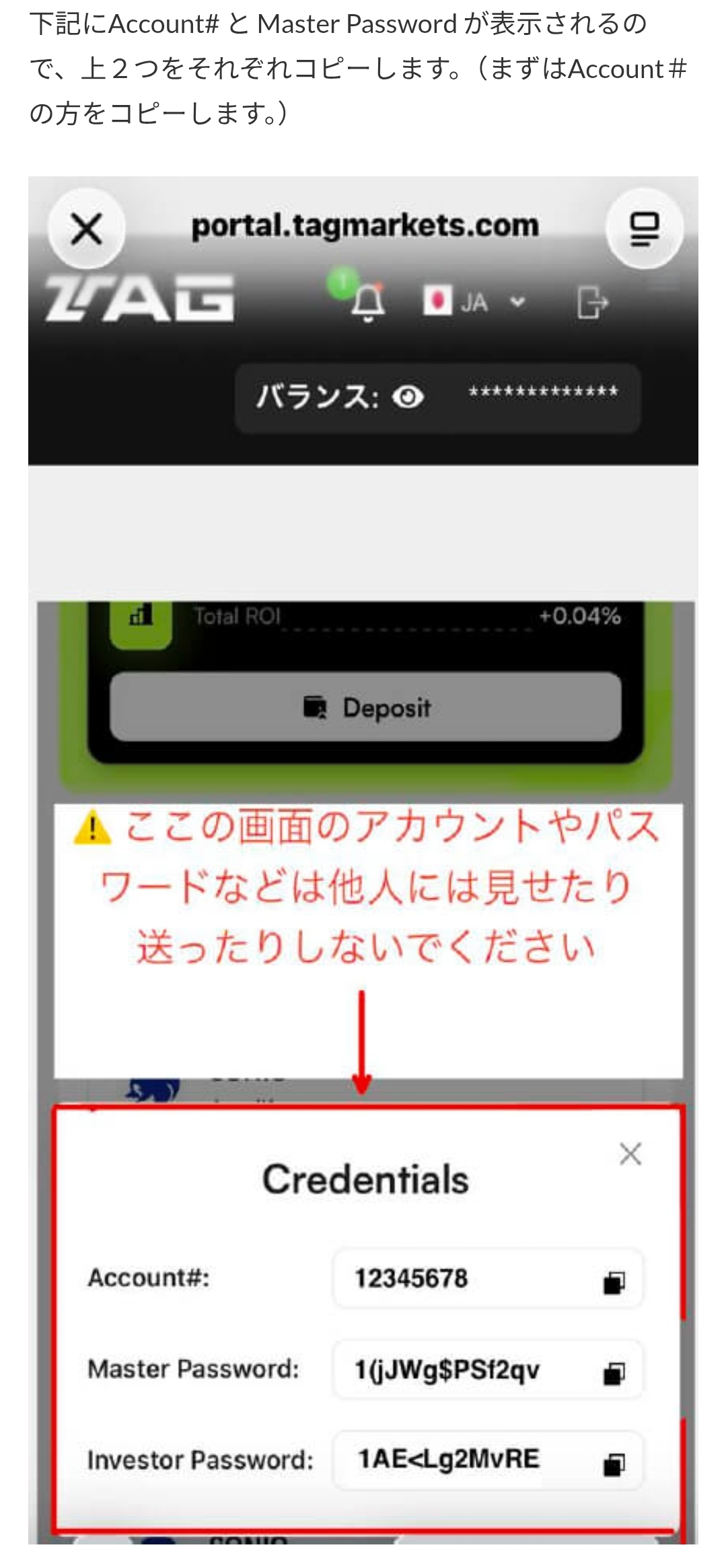
    Enter only your own account number and Master Password shown in the official portal into MT5. After sign-in, review the account state and trading-history display.

    Never share account numbers, passwords, investor passwords or authentication codes through LINE, social media or email.
    Screen 29: Sign in to MT5 using only your own credentials
    Screen 29
    Screen 30: Sign in to MT5 using only your own credentials
    Screen 30
    Screen 31: Sign in to MT5 using only your own credentials
    Screen 31
    Screen 32: Sign in to MT5 using only your own credentials
    Screen 32
    Screen 33: Sign in to MT5 using only your own credentials
    Screen 33

FINAL CHECK

After setup, keep confirming your own status on official screens.

This guide summarizes checks from CopyX registration through Tag Markets login, KYC, funding, SONIC connection and MT5 setup. Confirm that every step is complete, whether copying is active, and the displayed scope of trades and balances plus stop and withdrawal terms. A copy setting may be automated, but it does not guarantee 100% uptime, execution, returns or immediate balance updates.

01 / CODE

About codes and “24x” displays

The supplied guide lists “#aitech” for Code and “000000” for HASH/GU-ID. Confirm eligibility, account type, drawdown and multiplier definitions in the external service's official interface and current terms. A “24x” display does not guarantee 24 times the capital or profit.

02 / MT5

Review CopyX and MT5

Keeping the CopyX account page and official MT5 app on a home screen can make account checks easier. The availability of trade history, balances, update timing and viewing scope depends on external-service terms.

03 / SUPPORT

LINE

LINE can be used to ask about screens or official links; do not send identity documents, account numbers, passwords, authentication codes or funding destinations.

友だち追加
VERIFY
BEFORE
ACTING

SAFETY CHECK

Confirm every detail on the official screen before registering or funding.

Account opening, verification, funding, starting a copy and withdrawals happen on external services. This page and LINE do not guarantee eligibility, processing times, fees, returns, losses or account availability. If unsure, do not fund or submit personal information; confirm with official support.

Start CopyX registration

OFFICIAL LINKS

Verify each destination one by one.

Before registration, login or app installation, verify the official identity, URL, terms and regional availability on the destination page.

COPYXStart CopyX registrationTAG MARKETSCheck the official portalMETATRADER 5Check official MT5 informationTAG MARKETSCheck the official site

ZERO / LANGUAGE SUPPORT

Ask zero about what to verify.

Use LINE to ask about screens or official links. Do not send identity documents, passwords, authentication codes or funding destinations.

友だち追加

FAQ

Common checks before registration.

What does registration from this page do?

It opens the CopyX registration page. Account availability, review and applicable terms are determined by external services such as CopyX and Tag Markets under their current conditions.

Can I send ID documents or login details through LINE?

No. Keep identity documents, selfies, login IDs, passwords, two-factor codes and transfer details within the official service interface and under your own control.

Does a “24x” or multiplier label mean a return?

No. The meaning and conditions of a multiplier, leverage or operating limit must be confirmed in the official terms. It does not guarantee returns, loss limits, repeatability or availability.

What can I review in MT5?

You may review account status or trading-history displays made available by the external service. The scope, update timing and permissions depend on the account and service terms.

Check the terms and risks before starting registration.

After registration, keep verifying for yourself.

After registration, keep confirming the login URL, funding destination, network, fees, copy settings and stop/withdrawal conditions on the official screen each time.
Start CopyX registration Back to the Tag Markets information page
TAG MARKETS / COPYX REGISTRATION GUIDE

CFD, FX, leveraged and copy trading can result in a partial or total loss of capital. This is an informational guide only, not investment advice or a guarantee of returns.